Managing multiple subscriptions per customer
Overview
One customer, multiple contracts: in Kyvento, a customer can have any number of subscriptions to different products. This article shows where to keep track of them and how Kyvento protects you from accidental duplicate bookings.
All of a customer's subscriptions at a glance
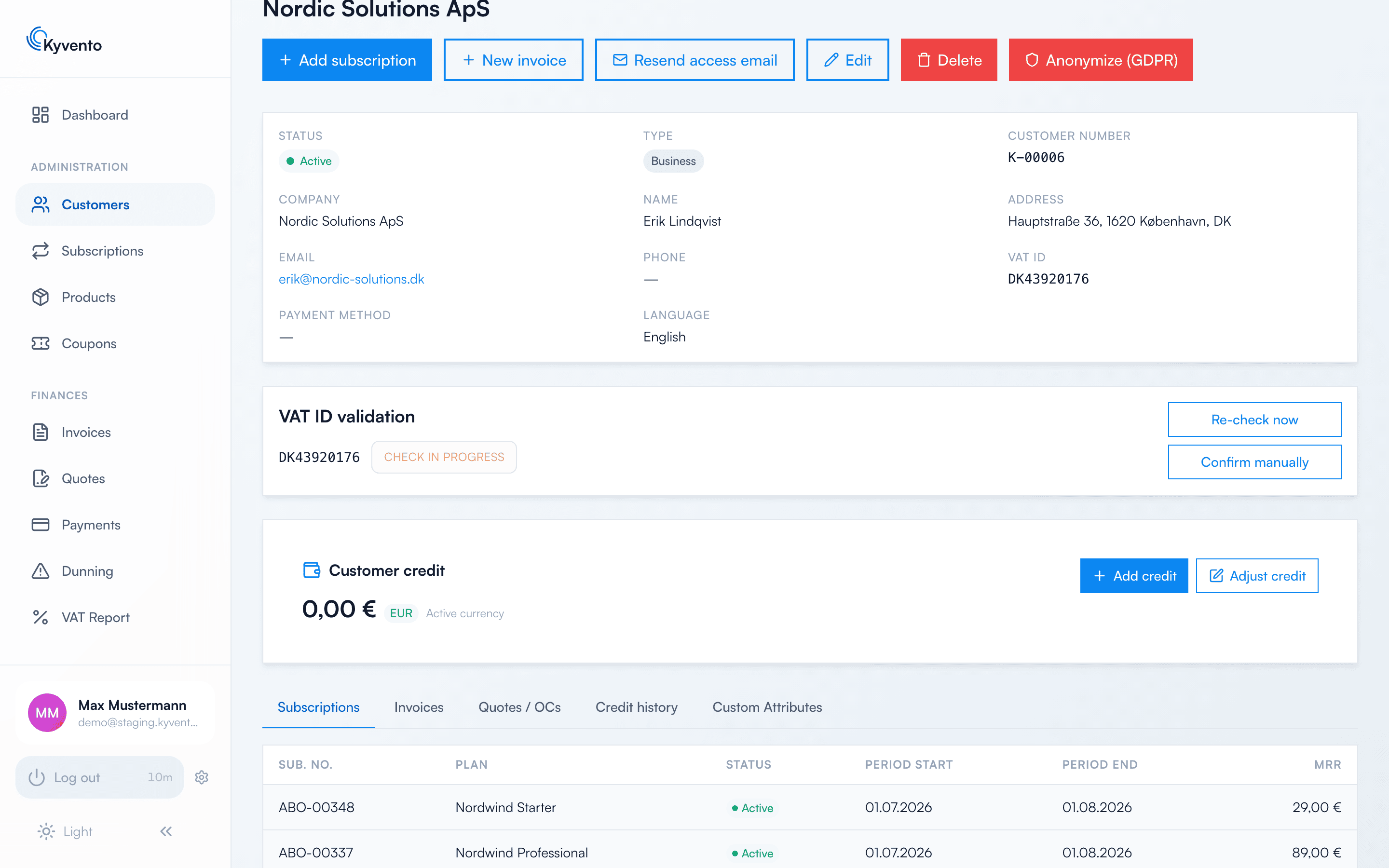
On the customer detail page, the first tab is "Subscriptions": a table with the subscription number, plan, status, period start and end, and each subscription's MRR contribution. From here, you jump directly to the respective subscription detail page or book another subscription via "Add subscription".
Protection against duplicate bookings
By default, Kyvento prevents a customer from having the same product actively subscribed twice: when booking, the message "The customer already has an active subscription for '…'" appears and the booking stays blocked. Different products are not affected – a customer can have "Starter" and an add-on package in parallel, for example.
If you deliberately need multiple subscriptions to the same product (per location or project, for example), enable the "Same product bookable multiple times while active" option in the settings. The booking then shows a warning with the "Continue anyway (duplicate subscription)" checkbox instead of the block.
Invoices stay separate
Each subscription generates its own invoices with its own rhythm. If you want to align the billing dates of several subscriptions, use "Reschedule next billing" on the respective subscription or the billing anchor "Start of month" on the product — see Billing cycles and key dates.
Tips for keeping track
- The subscription list ("Management" → "Subscriptions") filters by status – so you can see all paused contracts account-wide, for example.
- The customer list itself shows no MRR value. You see the MRR contribution per subscription in the "Subscriptions" tab of the customer detail page – so you can tell which of a customer's contracts bring in the most recurring revenue.
Next steps
- Synchronize the billing dates of multiple subscriptions – see Billing cycles and key dates
- Supplementary services instead of a second subscription – see Defining add-ons and extras