Integrating PayPal
Overview
PayPal is the most convenient payment method for many customers. In Kyvento you connect your PayPal business account directly and offer PayPal alongside credit card and SEPA — independently of which card provider you use.
Your contract with PayPal
Payment processing via PayPal is a third-party service: you conclude the contract for it directly with PayPal. Their terms and prices apply to you directly, and PayPal is also your contact for outages and fee questions. Kyvento only provides the technical connection.
Connecting PayPal
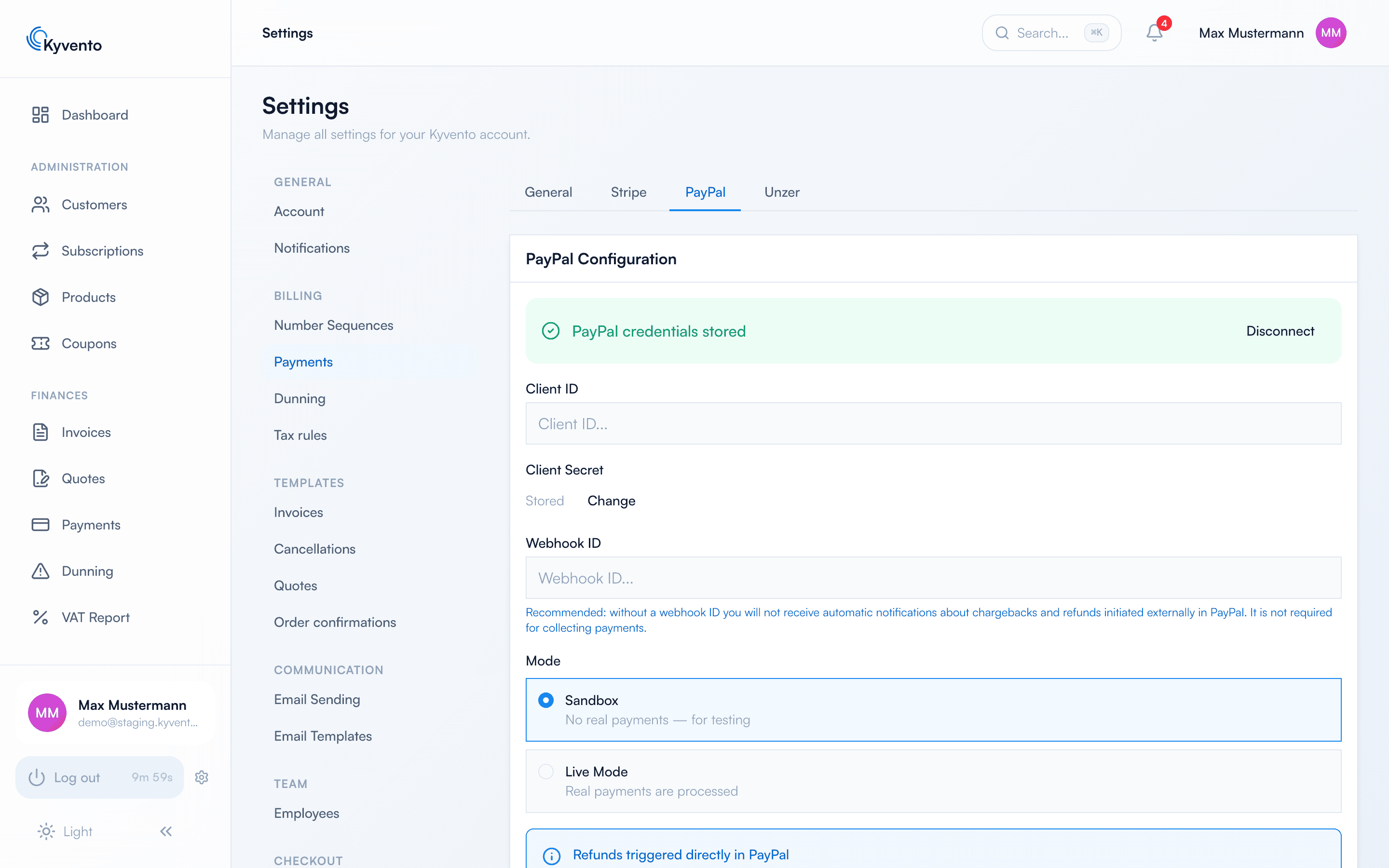
Open "Settings" → "Payments" → "PayPal" tab and store the Client ID and Client Secret of your PayPal REST app from the PayPal developer dashboard. In "Sandbox" mode you can test safely without real payments; in "Live Mode" real payments are processed. For PayPal, "Live Mode" only becomes available once the plan you have booked is active: during the trial period it is locked, and you work in the sandbox.
Register the displayed webhook URL as a webhook endpoint in the PayPal dashboard and enter the Webhook ID generated there in Kyvento. If you skip that, payments still work — but Kyvento rejects incoming PayPal notifications because it cannot verify their authenticity without that ID. Chargebacks and refunds triggered directly in PayPal will then never reach you.
Save first: "Test Connection" checks the credentials stored server-side and is only active when there are no unsaved changes.
Enabling PayPal
After saving, enable the "PayPal" payment method in the "General" tab — your customers then see the PayPal button in the hosted checkout and the customer portal. For recurring subscription payments the customer authorizes PayPal once; subsequent charges run automatically.
Enabling transaction search
Kyvento reconciles your PayPal balance daily against the payments recorded on your account. To do so it reads your transactions through PayPal's Transaction Search API — and PayPal only grants access once you tick the "Transaction search" add-on service in your PayPal app. Payments and webhooks work without it; only the daily check is missing.
You set this in your own PayPal app — the one whose Client ID and Client Secret you stored in Kyvento:
- Sign in to the PayPal Developer Dashboard (
developer.paypal.com) and open Apps & Credentials. - Open your app.
- Go to the Features section and then to Add-on services.
- Tick "Transaction search" and confirm with "Save".
Separate sandbox and live app: PayPal gives each environment its own app, and the setting only applies to the app you set it in. So tick it in both your sandbox and live app.
"Test Connection" checks this permission as well: if it is missing, Kyvento shows you exactly this path during the test. If you have only just ticked it, the next daily reconciliation picks it up – the one before may still run with the old permission.
Customers add PayPal themselves
Your customers can also add PayPal later in the customer portal or switch to it — without you having to do anything. The customer is redirected to PayPal once and confirms the authorization for recurring payments there.
Worth knowing: a customer in Kyvento always has exactly one payment method. A newly added method replaces the previous one; there is no choosing a default among several.
This is the most convenient way out of a failed payment: instead of exchanging emails, send the customer the portal link, they replace the payment method themselves, and the next collection goes through.
Refunds
Refunds triggered from within Kyvento — for instance a cancellation with "Refund via payment provider" — run directly through the PayPal connection. If you have already refunded in PayPal, record it differently so as not to trigger a second refund — see Recording a PayPal refund manually in Kyvento.
Next steps
- Add card payments — see Accepting credit card payments
- Keep payment problems under control — see Failed payments: smart retry