Managing shipments
Overview
As soon as goods shipping is switched on and a subscription containing a shipping product is billed, the planned shipments appear in the "Shipments" area. This article describes the day-to-day work with them: the states of a shipment, moving dates, the picking list for your logistics provider and the way back for the tracking numbers. The setup — switch, shipping product, delivery address — is covered in Setting up goods shipping.
The shipment list
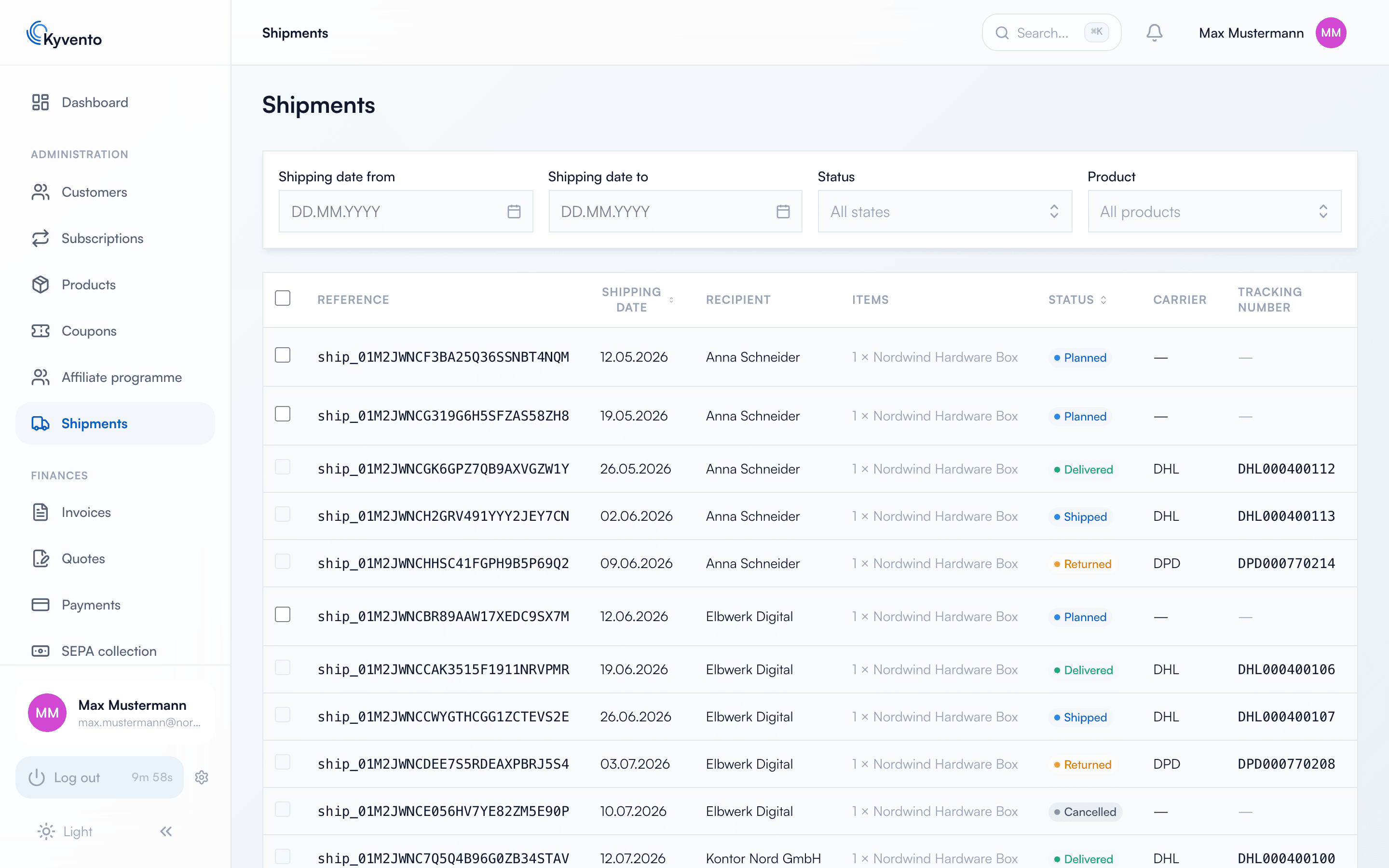
For each shipment the list shows date, recipient, items and state; carrier and tracking number join them once reported. You narrow it down by period, state and product. The chosen filters are kept in the address bar and can be passed on to colleagues that way.
The states of a shipment
A shipment is planned, shipped, delivered, cancelled or returned. Not every transition is possible, and that is the point where you should think first:
- A planned shipment becomes shipped or cancelled.
- A shipped shipment can no longer be cancelled — the goods are on their way. If they come back, that is a return; otherwise it becomes delivered as soon as you report the delivery.
- Even a delivered shipment can still become a return, for instance upon withdrawal.
- Cancelled and returned are final states.
A suspended shipment — because the subscription is paused — stays planned and keeps its date. It appears in the list like any planned shipment but is missing from the picking list until the subscription resumes.
Moving dates
On a planned shipment, "Change date" opens a dialog for the new shipping date. Select several shipments via the checkboxes and move them together to one date; anything shipped in the meantime stays untouched and is listed individually in the result.
Billing date and subscription period stay untouched — only the shipment moves.
The picking list for your logistics provider
You do not create the picking list in the shipment list but under "Exports" as the picking list of shipments. You narrow it down by packing day, product and state. The packing day takes the product's lead time into account: a shipment dated the 10th with three days of lead time is on the list from the 7th.
For each shipment the file contains the reference, the recipient with the full delivery address and the items with quantity — everything your logistics provider needs to pack. Suspended shipments are missing.
Reporting tracking numbers and states back
Kyvento does not trigger the dispatch — you or your logistics provider do. What happens to a shipment afterwards is something you report back via the API; there is no button for it in the shipment list. Two routes are open:
- Individually per shipment: you set the new state and, if needed, tracking number and carrier.
- As a file: your logistics provider adds the tracking number, optionally the carrier, to each shipment in the picking list and hands it back. Kyvento first shows what will be matched and what will not, with a reason for each rejected row, and then sets the shipments to "Shipped" in one go. If the run aborts, no row is written; importing the same file a second time changes nothing.
On the transition to "Shipped", Kyvento records the delivery address actually used. How to make API calls is explained in API documentation and examples.
Webhooks
For every step of a shipment — created, shipped, delivered, cancelled, returned — Kyvento sends its own webhook event to your warehouse system, as long as goods shipping is switched on. How to subscribe to events is explained in Configuring webhooks.
Next steps
- Switch, shipping product and delivery address — see Setting up goods shipping
- Setting up API access — see Setting up API access and creating an API key