Credit notes and cancellations
Overview
A faulty invoice, a justified complaint, a goodwill gesture: in Kyvento you correct invoices in a GoBD-compliant way via cancellation documents — never by editing or deleting a finalized invoice. How the customer gets their money back is something you decide during the cancellation.
Creating a cancellation
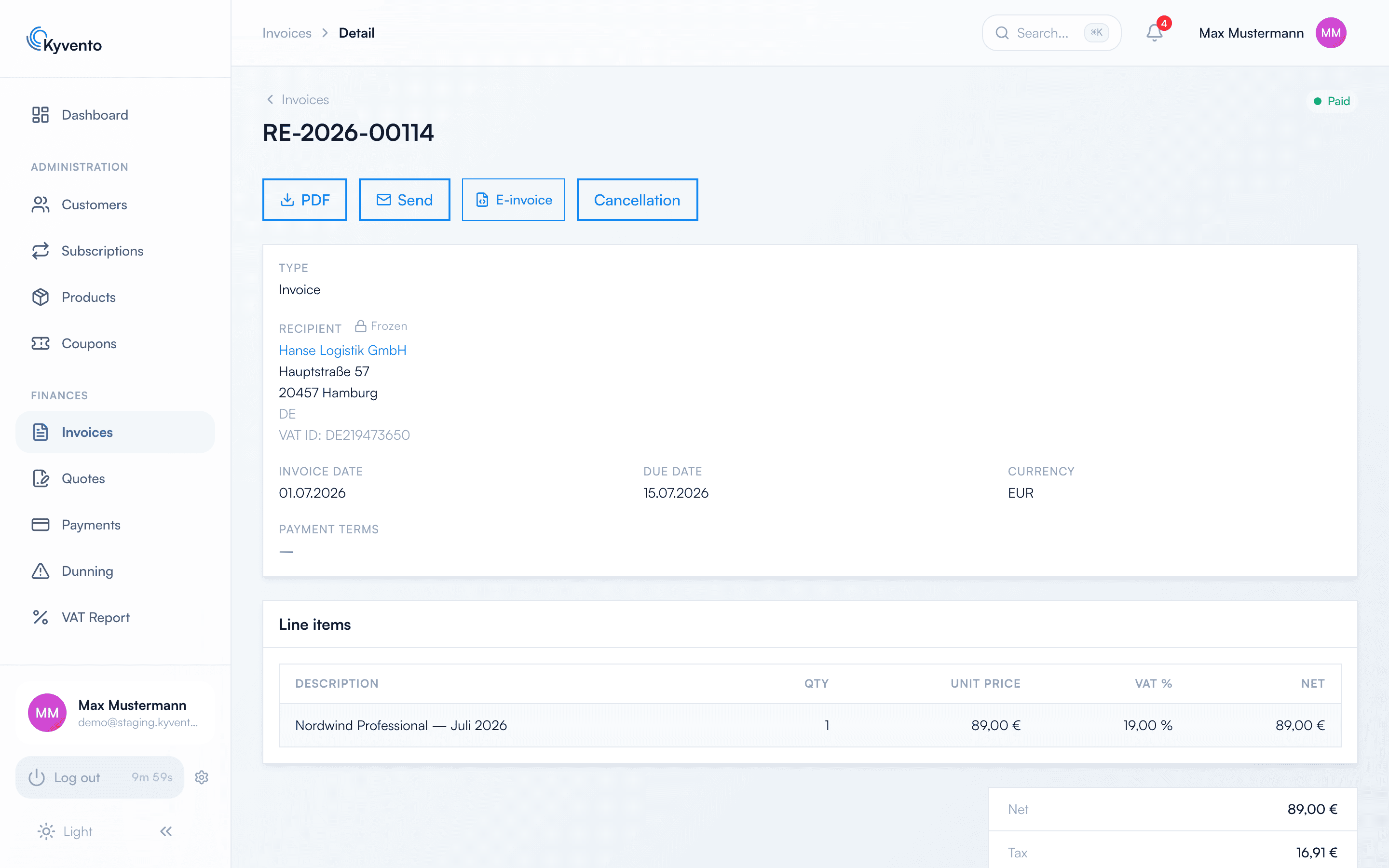
On the invoice detail page you start via "Void". What is possible from there depends on whether money has already been received:
- Unpaid invoice — full cancellation only. Create the document and you are done: the receivable is neutralized and dunning stops for this invoice.
- (Partially) paid invoice — full cancellation or a partial cancellation over individual line items or a "Custom amount", plus the choice of refund method.
Kyvento creates a standalone cancellation document with its own number sequence and its own template; the original invoice is preserved unchanged and linked to the cancellation.
If a manual collection attempt is currently running on the invoice, Kyvento requires it to finish first — otherwise cancellation and payment could overtake each other.
The refund method: the decisive choice
For a paid invoice, the cancellation dialog asks for the "Refund method". It determines whether Kyvento moves money or merely posts an entry:
- "Add to customer credit balance" — the amount goes to the customer's credit balance and is offset against the next invoices. Ideal for running subscriptions.
- "Manual refund" — Kyvento only posts the correction; you transfer the money yourself. This is also the right choice when you have already refunded outside of Kyvento.
- "Refund via payment provider" — Kyvento actually triggers the reversal at Stripe, Unzer or PayPal. Only choose this if the money has not flowed back yet.
An accidental cancellation can be undone via "Reverse cancellation" — including unwinding a credit refund.
Foreign currency: no credit possible
If the invoice is not in your account currency, "Add to customer credit balance" is not available: customer credit is held exclusively in the account currency, and credit in one currency cannot settle a receivable in another. Kyvento rejects the cancellation in that case and points to refunding via the customer's payment method. Choose "Refund via payment provider" or "Manual refund" instead.
Why there is no credit-note document
Kyvento deliberately has no separate document type for credit notes — the cancellation document is the commercial credit note in the tax sense. So anyone looking for a credit note is looking for the cancellation.
For goodwill without reference to an invoice, use customer credit directly on the customer instead — "Add credit" for a credit, "Adjust credit" for a subsequent correction.
How customer credit is offset
Kyvento deducts credit as soon as an invoice is finalized — the oldest credit entries first. Two consequences regularly cause surprise:
- An invoice that is already open is not offset retroactively. Anyone topping up credit after the invoice was created has to settle it another way.
- Credit is not money in an account but an offsetting position. It is not paid out.
- An invoice that credit is offset against is due immediately and carries no payment term — why that has to be so is explained in Payment terms and due dates.
Next steps
- Payments and credit in daily use — see Recording payments manually
- Design cancellation documents — see Customizing invoice design