Setting up the DATEV export
Overview
The DATEV export hands your invoice data to your tax firm as a posting batch. Kyvento produces the EXTF CSV format that DATEV systems read directly. This article shows what has to be settled beforehand, how you request the batch and what it contains.
Three things have to be in place first
All three live under Settings → Account in the "DATEV" section. If one of them is missing, the export stops instead of producing an unusable batch.
- Consultant and client number. They go into the EXTF header; your tax firm uses them to assign the batch to the right client. You receive both numbers from the firm.
- The default chart of accounts (SKR03 or SKR04). The export dialog lets you override it per export.
- The receivable accounts – the most important question, and the only one without a default. Under "Posting of receivables" you decide whether Kyvento keeps individual debtors (one account per customer, assigned consecutively from a base number your tax firm gives you) or posts everything to a collective account. As long as nothing is selected here, no posting batch is created.
Which of the two is right is for your tax firm to say: clients who prepare a balance sheet usually keep personal accounts per customer, while cash-basis accounting (EÜR) often puts everything on a collective account. Kyvento deliberately presets nothing, because every export establishes an account in the bookkeeping – once something is posted there, nobody moves it again.
That is why these settings are not permanently editable: as soon as a real posting batch has been generated, they are locked. A test export does not lock them – use it while you are still unsure.
Requesting an export
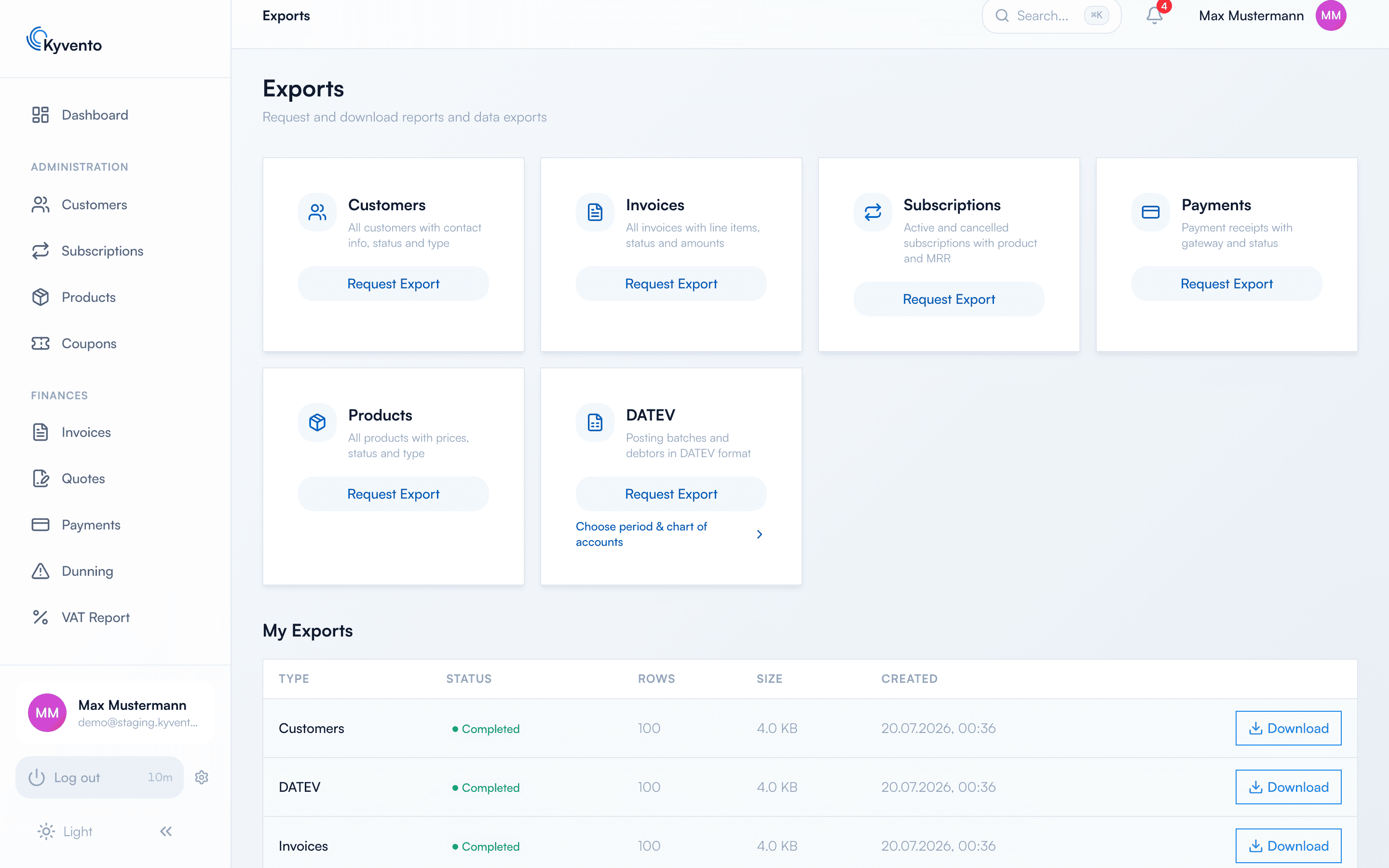
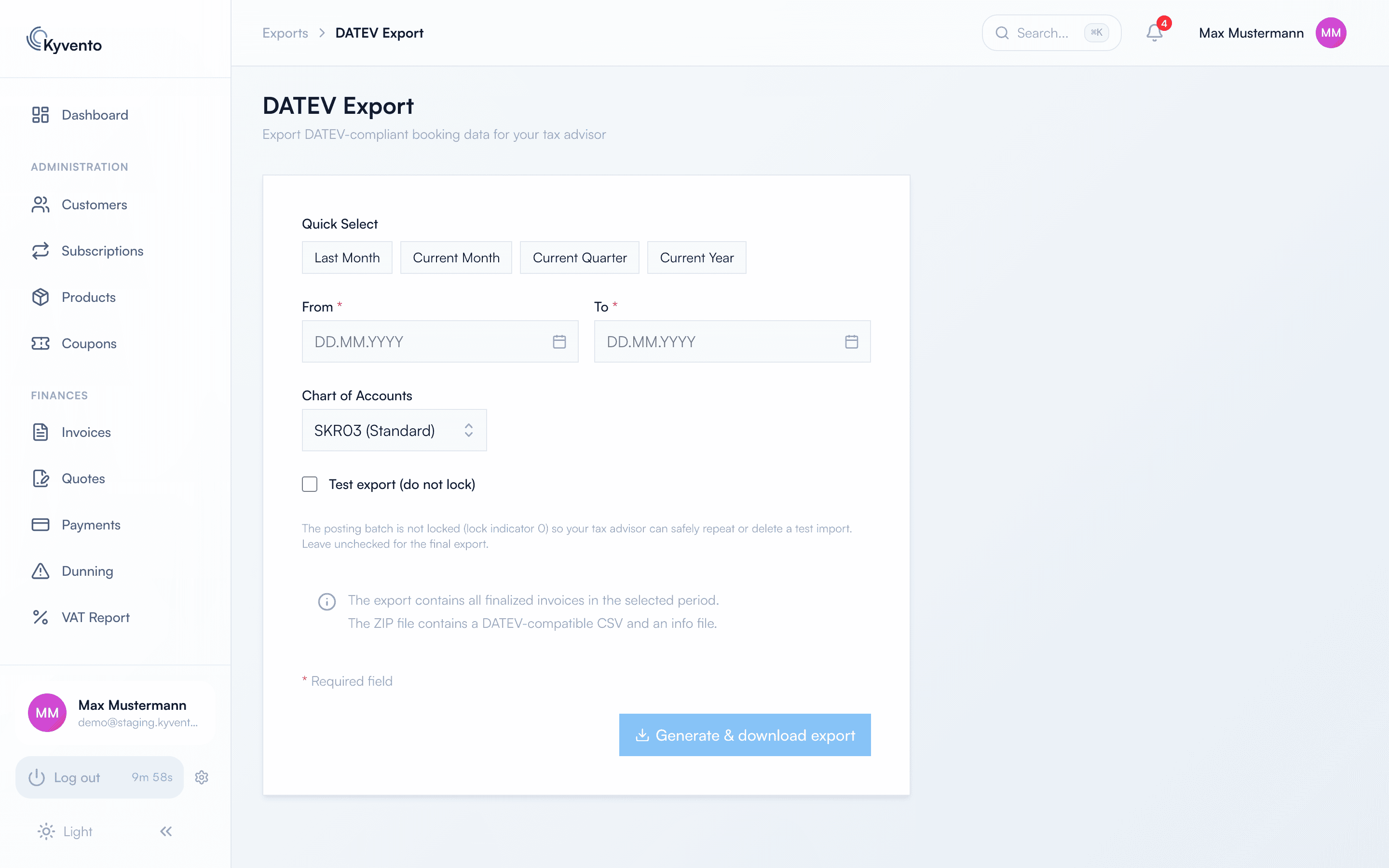
Open "Exports" in the sidebar ("System" group) and click "Request Export" on the "DATEV" tile. A dialog opens – there is no shortcut without making a choice:
- The period is mandatory and may cover one calendar year only, because DATEV's locking applies per financial year. Nothing is preselected; quick-pick buttons for common periods sit next to the fields.
- The chart of accounts is prefilled with your default and can be switched here.
- "Test export (do not lock)" produces the batch with locking flag 0. Your tax firm can then repeat or delete a test import safely; the enclosed
info.txtmarks the batch as a test. For the final handover, leave the option off.
After confirming, generation runs in the background – no download starts automatically. The batch appears further down under "My Exports" and can be downloaded there once it is ready. It stays available there later as well.
What is in the ZIP
The archive contains EXTF_Buchungsstapel.csv and an info.txt with the key facts – no document PDFs. The CSV is semicolon-separated and encoded in ISO-8859-1; that is the encoding DATEV expects, not UTF-8.
It contains all finalised invoices of the period, counted by invoice date. Drafts stay out, cancellation documents are included as postings of their own. Each invoice line becomes one posting line: the account field carries the receivable (debtor or collective account), the contra account carries the revenue account from the product (see Assigning bookkeeping accounts (SKR03/SKR04)).
Documents in a foreign currency additionally carry the document currency, the accounting exchange rate frozen on the document and the equivalent in your base currency. If such a document has no rate, the export stops and names it – otherwise it would land in the batch as an amount in base currency.
To settle with your tax firm
- Individual debtors or collective account – and, for individual debtors, the base number of the range (see above).
- Which revenue accounts should apply per product and tax case.
- Whether a test import is wanted before the first real handover.
- At which interval you export – the start of the month for the completed previous month has proven itself.
Good to know
- The export changes no data in Kyvento and can be repeated as often as you like, for example when cancellations have been added since.
- Correct postings depend on a complete tax configuration and properly maintained revenue accounts on your products.
Next steps
- Set up revenue and debtor accounts – see Assigning bookkeeping accounts (SKR03/SKR04)
- Build a monthly routine around the export – see Period closing and month-end
- Other export routes at a glance – see Integration with accounting software (Lexoffice, sevDesk)