Automatic invoice creation
Overview
Kyvento creates invoices for your subscriptions fully automatically — sequentially numbered, sent as a PDF and frozen in an audit-proof state. This article explains the lifecycle of an invoice and when Kyvento sends one on its own.
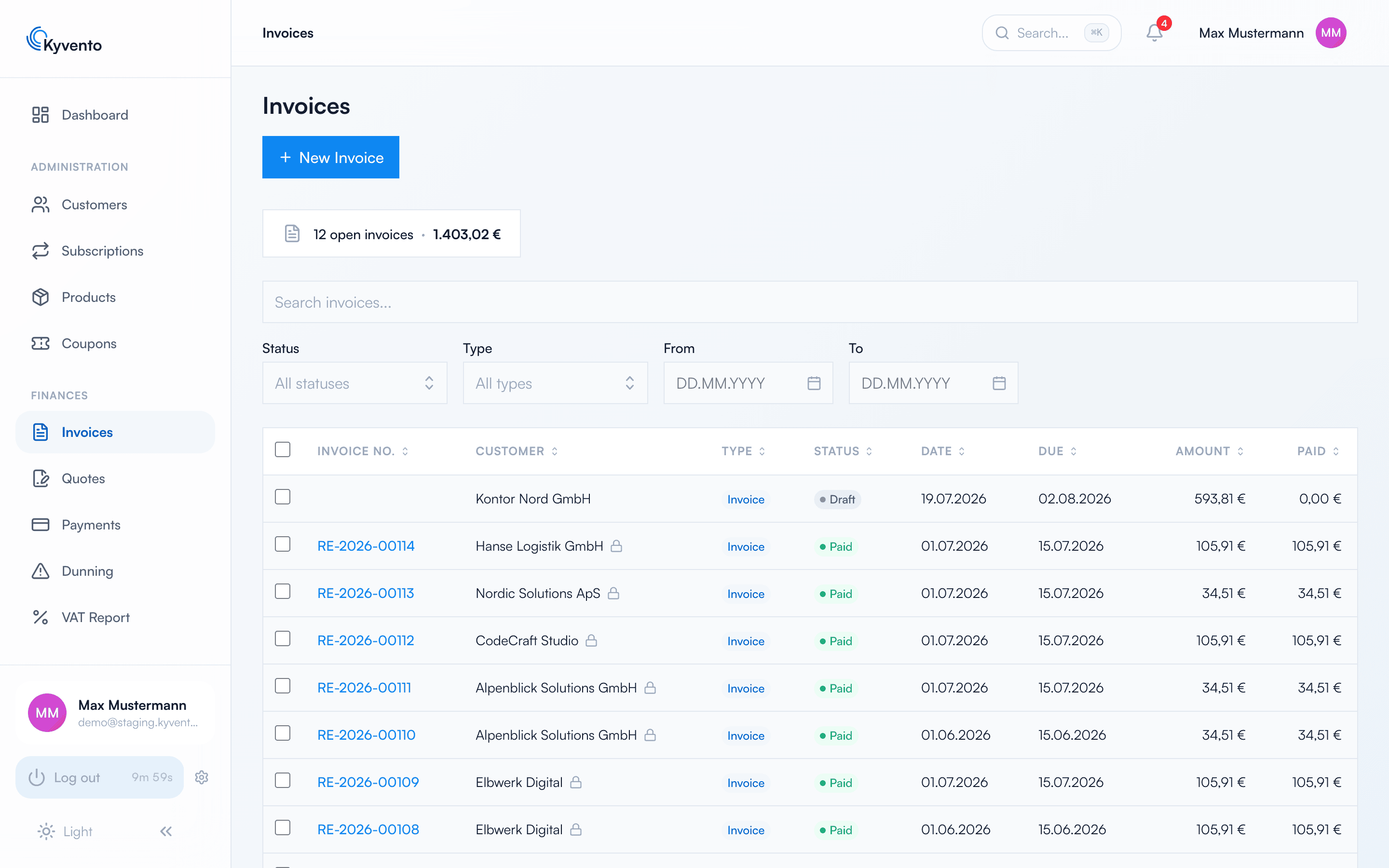
From draft to final invoice
An invoice has two states, and the transition between them is the most important moment in the whole document workflow:
- Draft — freely editable, still without an invoice number.
- Finalized — on finalization, Kyvento assigns the sequential invoice number and freezes the recipient details, the template and the statutory tax notes. From then on the invoice is immutable (GoBD).
Which means: whatever is wrong before finalization stays wrong forever. A finalized invoice can only be corrected through a cancellation — see Credit notes and cancellations.
Two edge cases that regularly prompt questions: the automatic billing run for your subscriptions creates and finalizes in one go — no draft is left lying around for someone to forget. And an invoice for 0.00 € counts as paid immediately, because there is nothing to collect.
When Kyvento sends automatically
Invoices from system processes — new subscription, renewal, plan-change settlement, usage billing, checkout order — are sent by Kyvento automatically by email to the customer, always with a PDF attachment. If the PDF cannot be produced, no email goes out at all and delivery is retried — nobody should receive an invoice email without the invoice.
Manually created invoices are deliberately not sent automatically. You trigger delivery yourself on the invoice detail page: "More actions" → "Send". Both routes have their own email template under "Settings" → "Email Templates": "Invoice delivery" for the automatic one, "Send invoice manually" for the manual one.
Creating manual invoices
Via "New Invoice" — in the invoice list or straight from the customer record — you bill ad-hoc services. When saving you have a choice: "Save as draft" keeps everything editable, "Save & Finalize" assigns the number and locks the document down.
Kyvento checks the tax rate of every item against the determined rate as soon as you save — what to do if they differ, and when you choose the VAT category yourself, is covered in Charging VAT correctly.
If you need a similar invoice again, you can spare yourself the retyping: "Copy" under "More actions" on the detail page creates a copy as a new draft, which you adjust before finalizing.
Next steps
- Customize the appearance — see Customizing invoice design
- Control due date and payment term — see Payment terms and due dates