Quotes and order confirmations
Overview
Not every contract starts with an invoice. Often there is a quote first, for the customer to review, and sometimes an order confirmation that puts the agreement in writing. You create both under "Finances" → "Quotes" — and turn an accepted quote into a subscription or an invoice with one click, without typing the line items a second time.
Quote and order confirmation: the difference
- Quote — your proposal to the customer, with a validity date. Nothing is binding until it is accepted.
- Order confirmation — the written confirmation of an order that has already been placed.
Neither is a tax document: no receivable and no VAT arise. Tax is only determined once an invoice is created from it — with the rates and customer data valid at that time.
Creating a quote
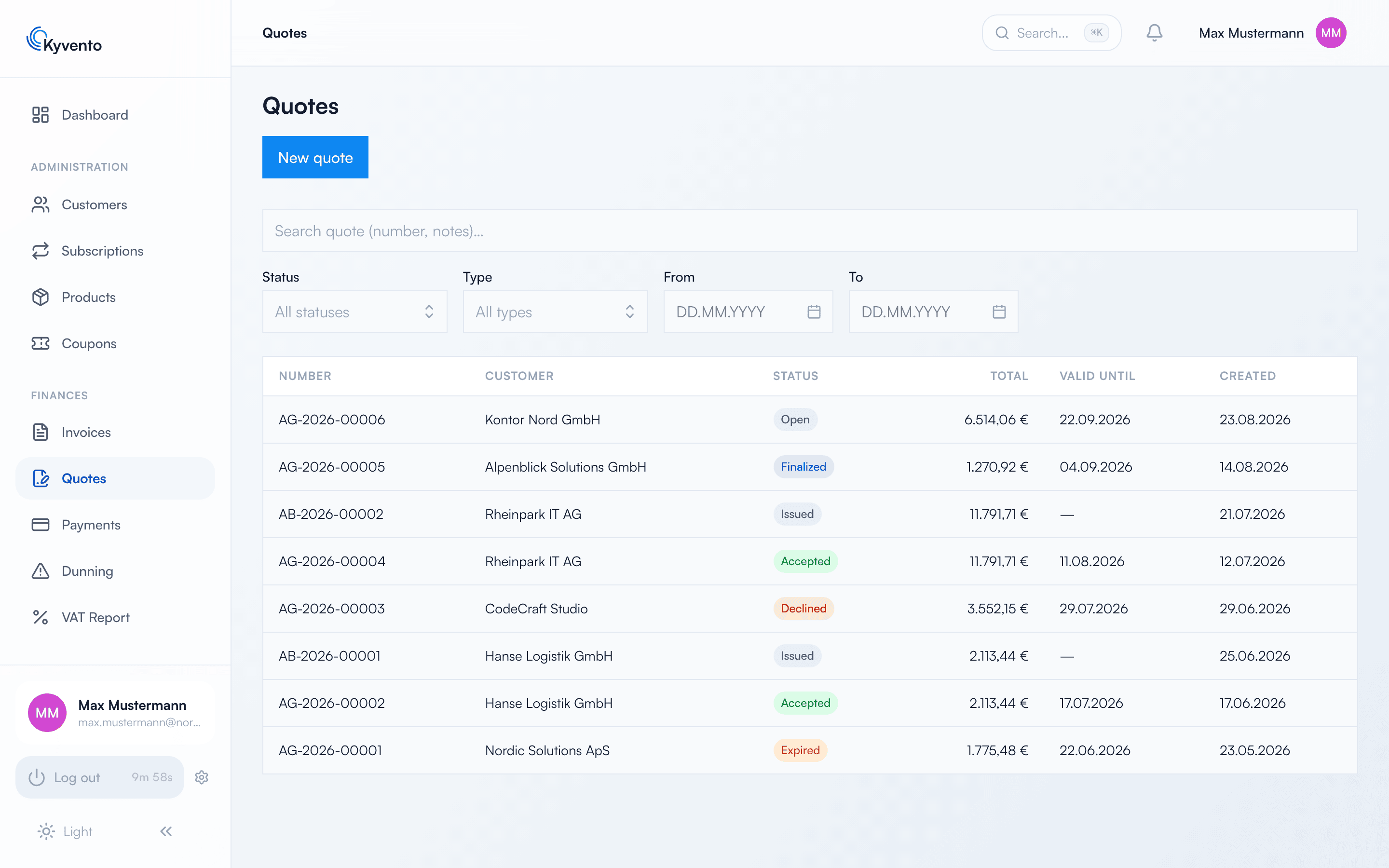
Via "New quote" you pick the customer, set a "Valid until" date and add line items — either a product from your catalog or a free line item that you describe and price yourself.
Two fields are easily confused: the "Cover letter" appears on the quote PDF above the line items, while the "Internal notes" stay internal and appear on no PDF.
After the validity date the quote counts as expired and can no longer be accepted — Kyvento changes the status on its own.
The path through the statuses
Quotes move through these statuses, which you can also filter by in the list:
- Open — the draft you can still change freely.
- Finalized — locked down and ready to be sent.
- Accepted or Declined — the customer has decided.
- Expired — the validity date passed without a response.
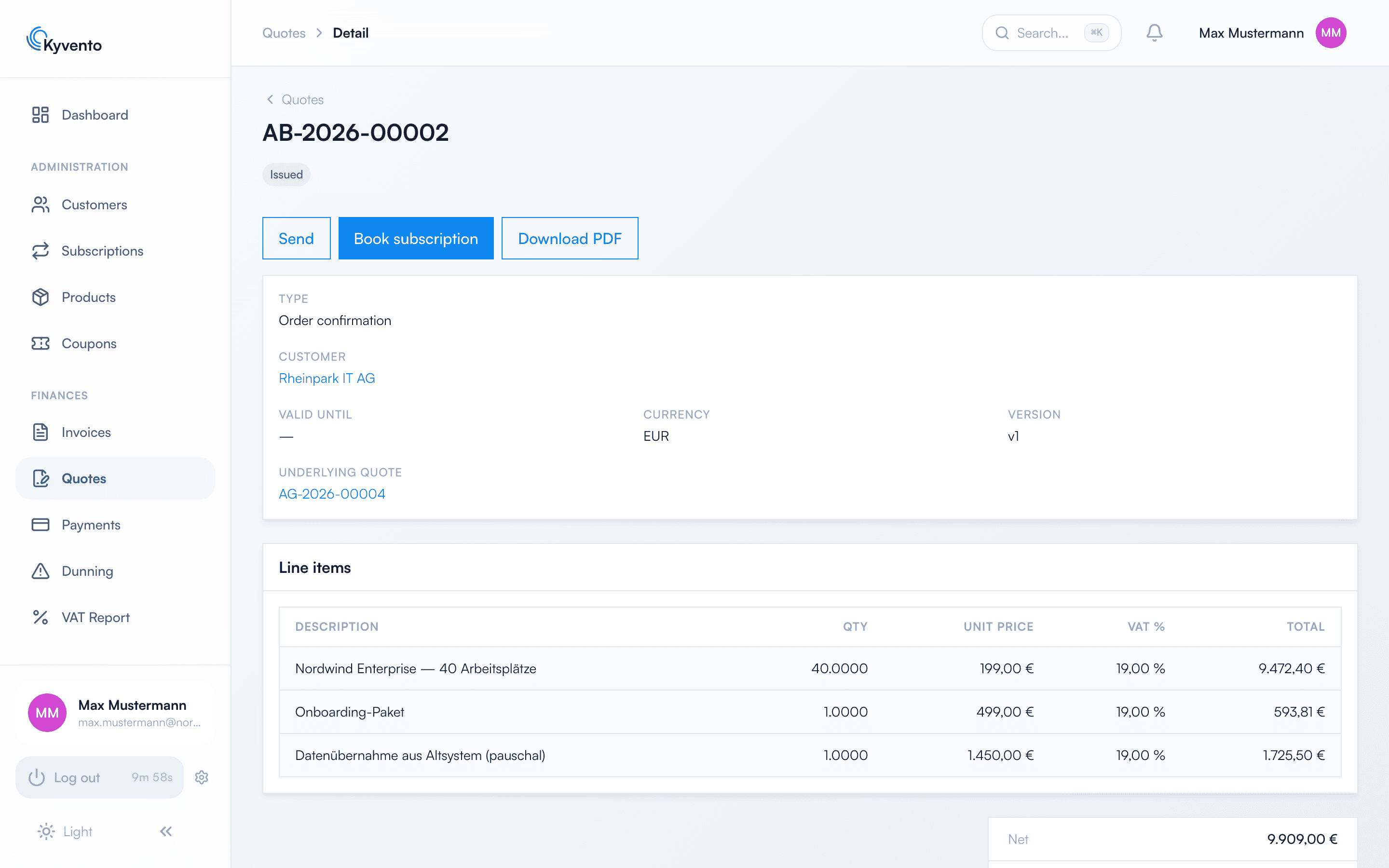
An order confirmation does not take this path: it carries "Issued" as soon as it is created and waits for no approval.
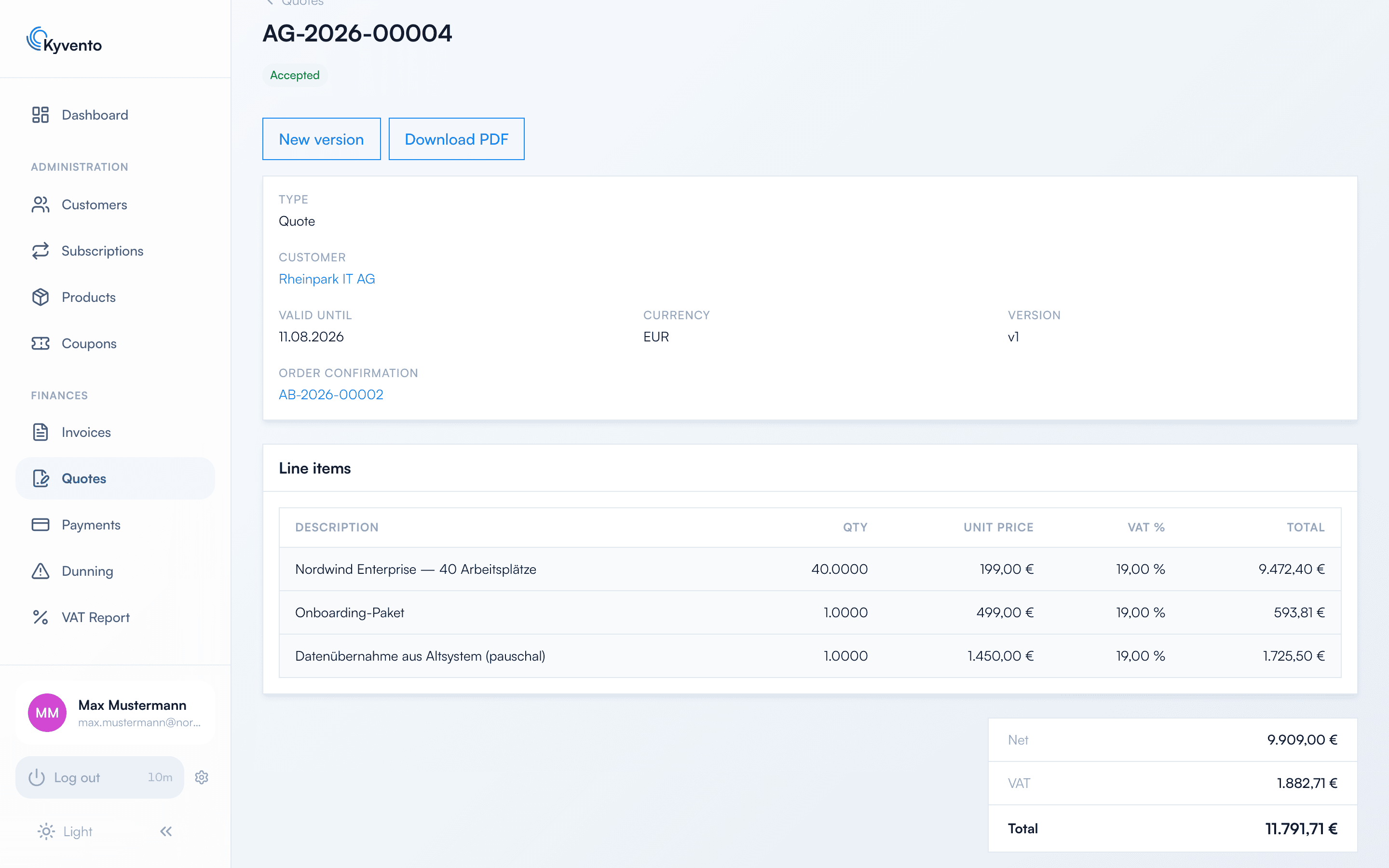
If you need a revised version, "New version" creates a new version of the same document — the document number stays, only the version counter increases. The old version is preserved, so it remains traceable what was offered when.
Turning a quote into an order
If the customer accepts, you mark the quote with "Accept". In the dialog, the "Create subscription automatically" checkbox controls whether the booking happens right away; without the tick only the status is set, and you book later via "Book subscription".
Kyvento creates whatever the line items allow: a subscription product becomes a running subscription, a one-off product ends up on an invoice. Free line items are automatically created as an individual product — they do not appear in your regular catalog.
The most important limit: a booking contains exactly one main product — a subscription or a one-off product — plus any number of add-ons. Several subscriptions, several one-off products or a one-off product alongside a subscription cannot be turned into one booking; Kyvento blocks that with a notice. Model such cases as a setup fee on the product or as a separate quote.
The payment route follows what is stored for the customer: if there is a usable payment method, it is collected from; otherwise the invoice goes out on account — provided you have allowed that for your account. If neither applies, the quote can be accepted but not booked.
Number sequences and templates
Quotes and order confirmations have their own number sequences under "Settings" → "Number Sequences" and their own templates under "Settings" → "Templates" — so a quote may look different from an invoice. The editor and the default templates work the same everywhere, see Customizing invoice design.
Next steps
- Create your products before you write quotes — see Creating a plan: step by step
- Adjust how your documents look — see Customizing invoice design