Configuring email notifications
Overview
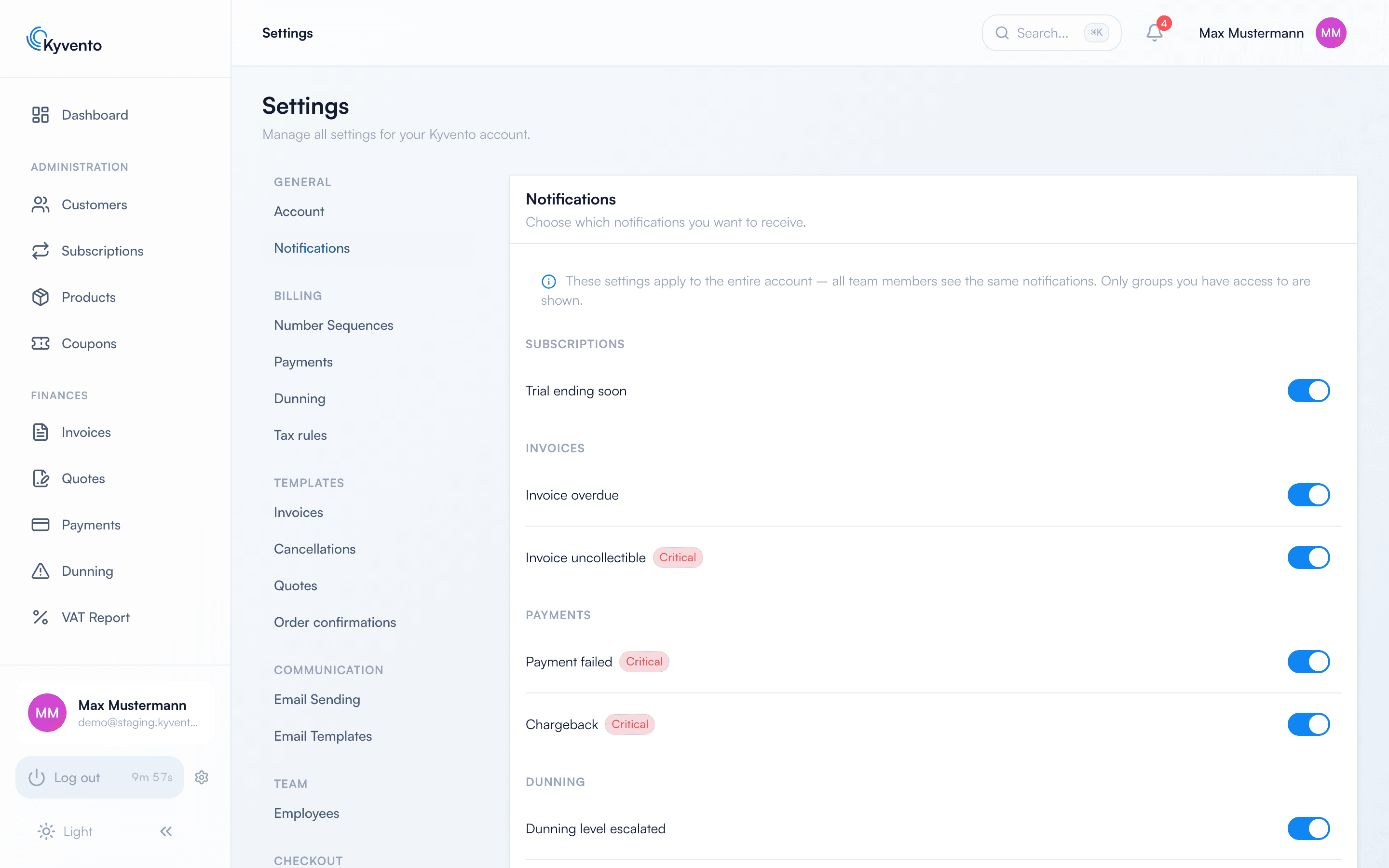
Kyvento keeps you informed about important events in your account — such as failed payments or overdue invoices. Which events trigger a notification is controlled under "Settings" → "Notifications".
Good to know
- The settings apply to the entire account — all employees see the same notifications.
- Only topic groups you have access to are shown.
- The toggles control the in-app messages; you view them in the sidebar under "Account" → "Notifications".
The topic groups
The toggles are grouped into subscriptions, invoices, payments, dunning and system & integrations; each row names the events behind it.
One exception is worth mentioning: the daily email delivery report under "System & integrations" is off by default — for most accounts a daily delivery summary is just noise. Switch it on here if you want to keep an eye on delivery problems.
Notifications with the "Critical" badge relate to matters that require immediate action. When you turn one off, Kyvento asks for confirmation just to be safe. Via "Restore defaults" you reset all toggles to the recommended initial configuration.
The message inbox
All triggered notifications land under "Account" → "Notifications". There you filter by "All" or "Unread" as well as by severity, and mark everything as read with a single click. Whether you also receive an email about new replies in support tickets is set by each user for themselves – see Contacting support.
Next steps
- Respond to payment issues in a structured way — see Failed payments: smart retry
- Automate reminders to your customers — see Enabling automated dunning