Setting up goods shipping
Overview
When your subscription does not only bill but also ships goods — a monthly box, a replacement part, a sensor — Kyvento plans the due shipments from every billed period, with a date, a recipient and line items. You hand your logistics provider a picking list and take their tracking numbers back in. This article covers the setup; the day-to-day work with shipments is described in Managing shipments.
Goods shipping is the handling, not the money path: Kyvento plans and tracks shipments. You enter carrier and tracking number as text on the shipment; there is no integration with a parcel service.
Switching on goods shipping
By default goods shipping is off, and then it does not exist in Kyvento: no menu entry, no shipping details on products, no shipments. You switch it on under Settings → General → Account with the switch in the "Goods shipping" card. The change takes effect immediately. The permission of the same name governs who may view and edit shipments.
If you switch goods shipping off again later while shipments are open, Kyvento first tells you the number of affected subscriptions, shipments and products and asks you to confirm. Those subscriptions keep being billed, but no new shipments are created. Planned shipments remain stored and are unchanged once you switch it back on — nothing is caught up: what would have been created while it was off is not created retroactively.
Turning a product into a shipping product
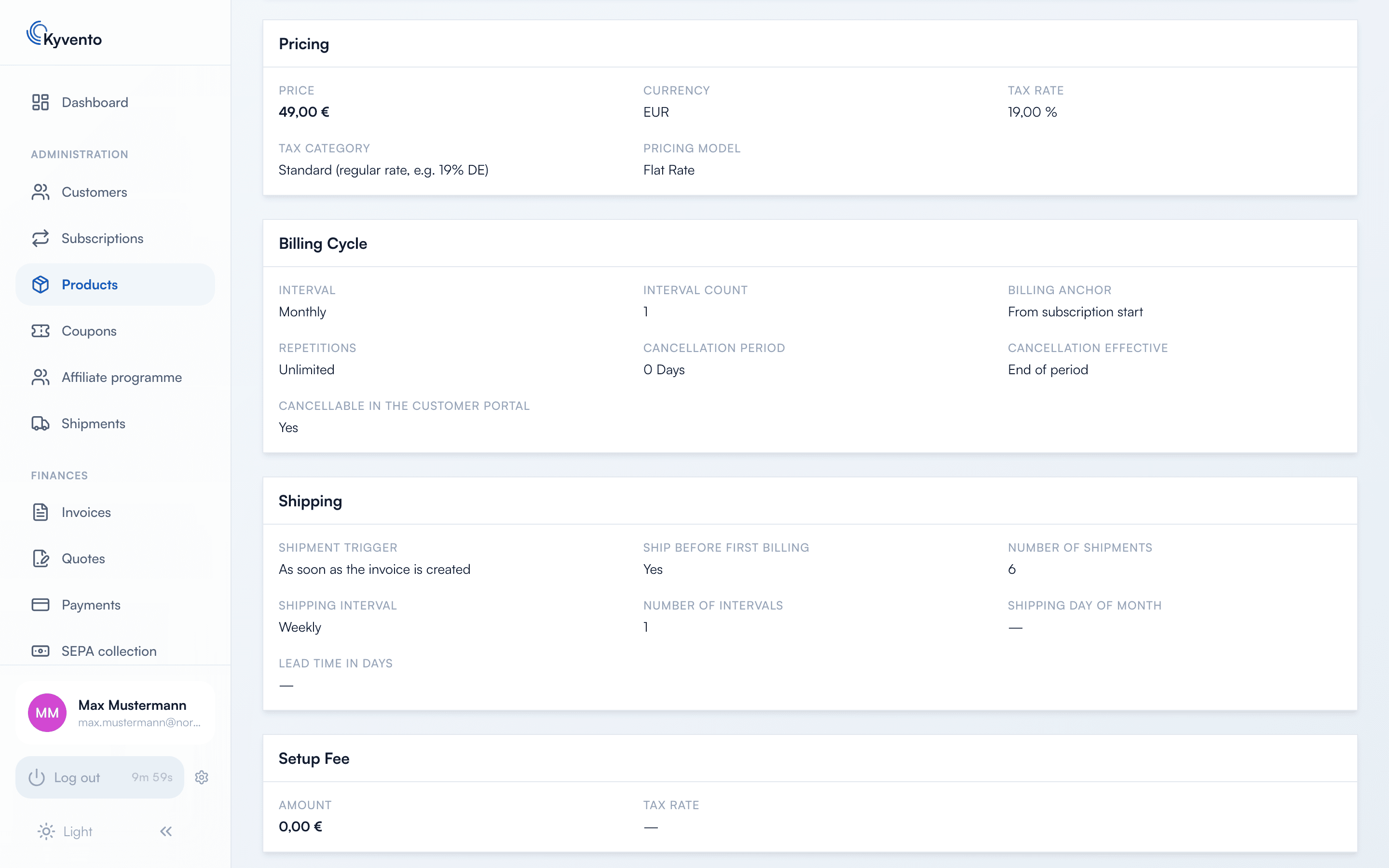
Only a product with the delivery type "Physical (goods shipment)" can be shipped. Once that is set, the product form shows the shipping card. There you mark the product as a shipping product and define when and how often goods ship:
- The trigger: shipments are created either as soon as the invoice is created, or only once it has been paid in full. A partial payment triggers nothing.
- Shipping before the first billing: if you allow it, shipments are created right away — also during a trial, before a start date in the future and before a confirmed first payment. Otherwise the first shipment is created with the first billing.
- The shipping interval applies within one billing period. This is how an annual subscription maps to twelve monthly shipments.
- The shipping day of month is the calendar day a date falls on. In a shorter month the date moves to its last day, never into the following month.
- The number of shipments applies to the entire term of the subscription, not per period. Empty means unlimited; cancelled shipments count too.
- The lead time says how many days before the date a shipment appears on the picking list — the time to pack and deliver. It does not move the date itself.
Two settings require an active decision. The trigger and shipping before the first billing deliberately have no default: both decide whether goods leave your premises before the money arrives. Until you answer them, the product cannot be saved as a shipping product.
Both triggers have a cost. With the created invoice the goods leave before the money arrives. With the paid invoice every shipment is postponed by the payment run time — with direct debit that is several days. If a payment only arrives after the end of the period, a single shipment with the payment day as its date is created instead of the missed series.
If you later remove the marking or change the delivery type, the shipping details are dropped on saving.
How shipments are created
Shipments are created automatically only, as soon as the chosen trigger occurs — at subscription start, at every renewal, at the end of a trial or with the full receipt of payment. They cannot be created or deleted by hand. The quantity per shipment follows the subscription's line items.
The first date is the first shipping day from the trigger day onwards; all further ones follow in the shipping interval until the end of the billed period or until the number of shipments is reached. The lead time is copied into the shipment when it is created; a later change on the product does not affect existing shipments.
Shipping dates and billing dates run separately. Moving a shipping date moves neither a subscription period nor an invoice — and vice versa.
Cancellation, pause and invoice cancellation
- Cancellation: shipments after the contract end are cancelled. Shipments of the already billed period remain — even if that invoice is still open.
- Pause: open shipments are suspended, not deleted. They keep their date, disappear from the picking list and return once the subscription resumes.
- Invoice cancellation: the still planned shipments created from that invoice are dropped. Shipments from other invoices of the same subscription are untouched.
- In all cases: anything already shipped, delivered or returned stays unchanged.
Delivery address
Goods ship to the customer's delivery address; if no different one is stored, the invoice address applies. The customer maintains a different delivery address themselves in the customer portal in their personal details; you can also set it via the API. Until shipping, every shipment reads the current address from the customer record — so a change of address still affects all open shipments. On the transition to "Shipped", Kyvento freezes the address actually used.
Kyvento does not check whether an address is complete. If the customer has none, the shipment is created anyway and the address details on the picking list stay empty. So make sure customers with shipping products carry an address.
What the customer sees
In the customer portal, a menu entry for deliveries appears as soon as shipments exist for the customer. There they see date, state, items and tracking number — display only, they cannot change anything. The display can be switched off in the customer portal settings; it is on by default. The customer learns the status in the portal, not by e-mail.
Next steps
- Shipment list, picking list and tracking numbers — see Managing shipments
- Creating products — see Creating a plan: step by step
- Pausing subscriptions — see Pausing or freezing subscriptions