Service notices for your customers
Overview
When your customers temporarily cannot do something in the customer portal — because you are planning maintenance or a service is disrupted — the best place to tell them is where they will see it: as a service notice right in the portal. Under Settings → "Service notices" you control two things:
- Your own notices, which you create, schedule and end for your customers.
- Whether notices from Kyvento — about disrupted card payments, for instance — may also appear on your customer-facing pages.
Creating and switching require the permission of the same name with full access; a role you created yourself has to be granted it explicitly.
Creating a notice of your own
"Create notice" opens the form. You choose the severity — it determines the colour of the banner, nothing else — and write title and text each in German and English. Both languages are mandatory: your customers choose their own language, and a notice without an English version would stay blank for some of them.
Three points in time control the notice, all in your account's time zone:
- Visible from — the notice appears from this point on. A date in the future is allowed; until then the notice counts as scheduled.
- Maintenance starts — optional. Leave the start empty and the disruption counts as already ongoing.
- Maintenance ends — optional. A set end ends the notice by itself; leave it empty and the notice stays up until you end it.
You also choose the placement in the customer portal: before sign-in, after sign-in or both. Before sign-in means the notice is already shown on the sign-in page, on "Forgot password" and at the two-factor prompt — exactly where a customer ends up who tries to sign in during maintenance. The default is "both".
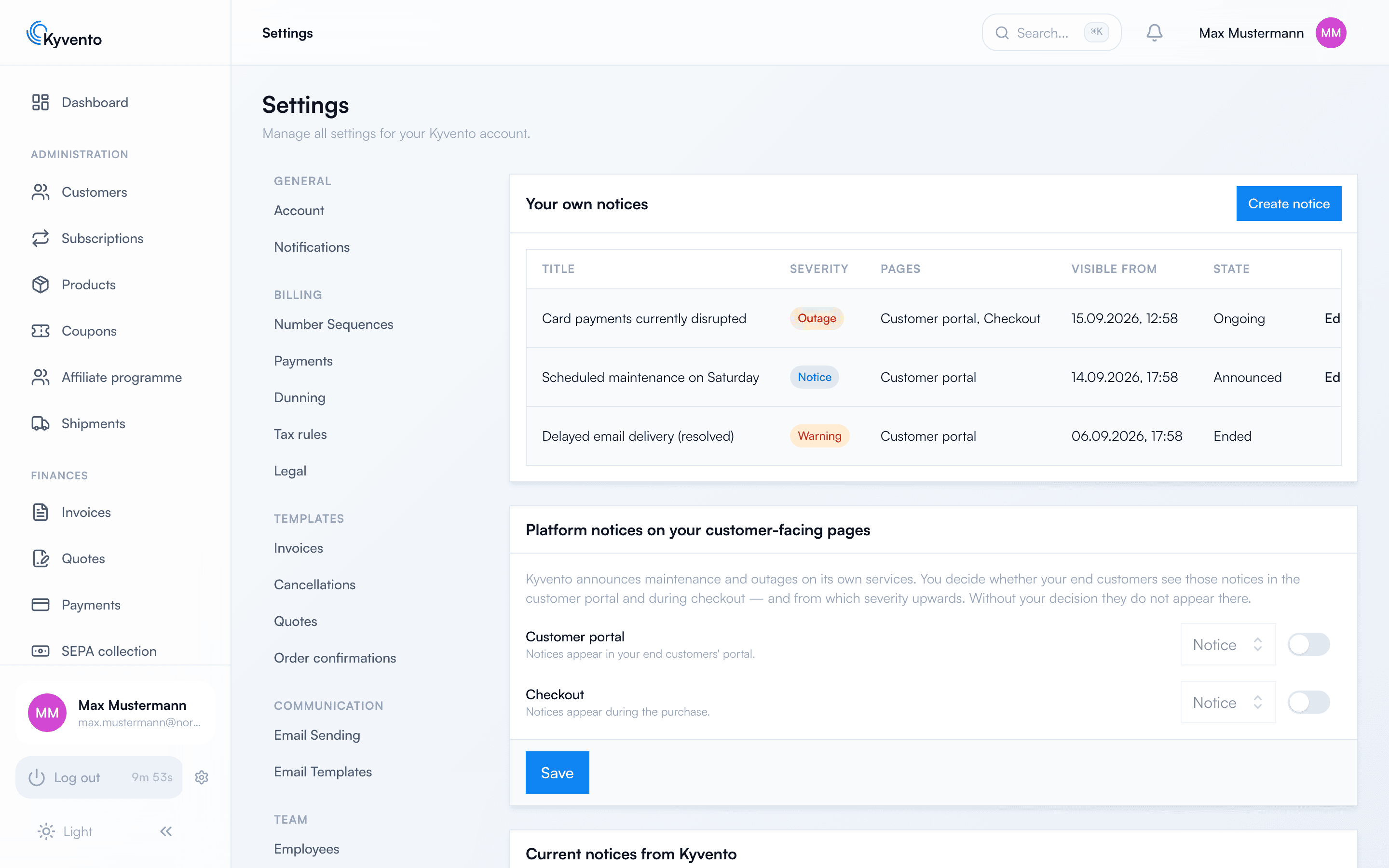
After saving, the overview shows each notice with its state.
Where your notice appears
Your notice appears as a banner in the customer portal — depending on the placement you chose, already on the sign-in page or only once the customer is signed in. The banner shows the title, the text and the announced period. Three particulars are worth knowing:
- The customer cannot dismiss the banner. It stays for as long as the notice is ongoing.
- The banner becomes visible on the next page load. Anyone who already has the portal open sees the notice on their next click.
- The notice lives in the portal only; Kyvento sends no e-mail about it — neither to your customers nor to you.
Editing or ending a notice
You can change texts and times at any time — when a maintenance window runs longer, for instance. "End" removes a notice from your customer-facing pages immediately. It is not deleted: it stays in the overview as ended, so you can later trace what you announced and when.
Notices from your monitoring
If your own product goes down, nobody has to create a notice by hand: via the API, your monitoring creates the notice and ends it again once the outage is over. The same details as in the form apply, and there you can additionally release the notice for the checkout. The description with an example for reporting and ending an outage is in the API reference under "Customer notices" — see API documentation and examples.
Kyvento notices on your customer-facing pages
Kyvento publishes notices of its own when a service is disrupted — card payments through a payment provider, for example. Whether they also reach your customers is your decision on the same page under "Platform notices on your customer-facing pages":
- The switches for customer portal and checkout are off by default. Without your intervention, a customer learns nothing about a Kyvento disruption.
- Per page you define from which severity notices are passed through — only outages, say, rather than every notice.
- The list of current Kyvento notices shows each one that concerns your customer-facing pages, with its own switch. That lets you override the general setting for an individual case.
- In very rare cases, individual Kyvento notices are marked as essential: they appear in the checkout and/or the customer portal regardless of your switches and cannot be switched off. Under "Current notices from Kyvento", such a notice shows a note in place of the switch.
Next steps
- When Kyvento requires a confirmation from you — see Confirming mandatory notices from Kyvento
- Setting up the customer portal and checkout — see Setting up hosted pages
- Who may change which settings — see Inviting team members and managing permissions