Recording payments manually
Overview
Not every payment runs through a payment provider: bank transfers, cash payments or direct payments are recorded in Kyvento by hand — partial payments included.
Recording a payment
Open the invoice and click "Record Payment". The amount is prefilled with the outstanding balance and the date with today; for a partial payment you simply change the amount. Bank transfer is preselected as the payment method, and the reference field is best filled with the payment reference from your bank statement — that is how you later tell which receipt belonged to which invoice.
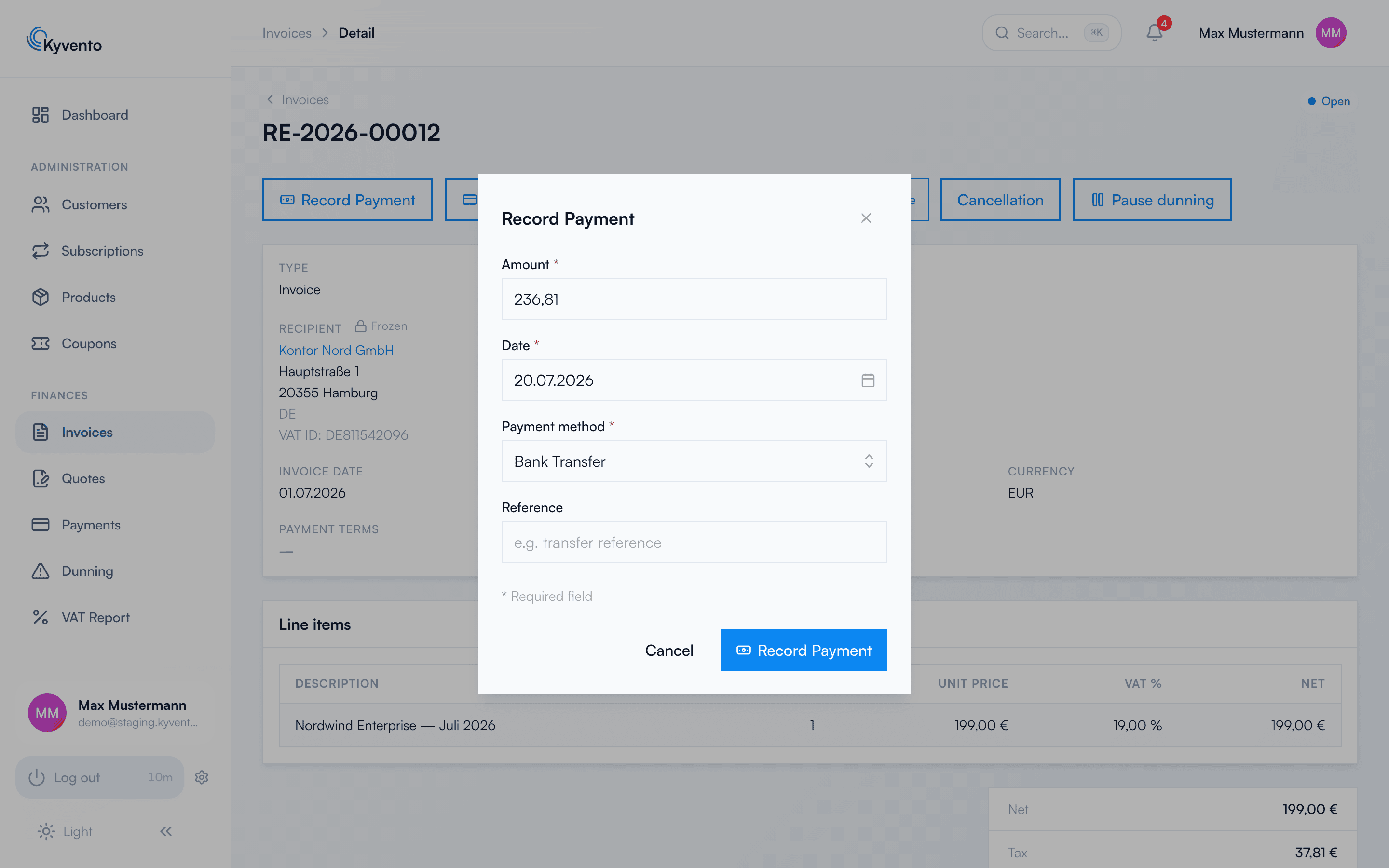
Partial payment and overpayment
- An amount below the outstanding balance sets the invoice to "Partially Paid" — the remainder stays due and continues normally, dunning included.
- A full payment sets the invoice to "Paid" and stops all reminders.
- Kyvento does not accept more than the outstanding balance. That protects against typos. A genuine overpayment is booked as customer credit on the customer and offset against future invoices — see Credit notes and cancellations.
Not to be confused: "Collect payment"
The neighbouring button "Collect payment" does the opposite: it actively charges the customer's stored payment method via the payment provider. For money that has already come in, always use "Record Payment".
If the bank requires confirmation by the customer during collection (SCA), the process does not abort but waits: Kyvento opens the "SCA required" dialog. The customer has to complete the payment in the customer portal themselves — and the email with the secure payment link only goes out once you click "Send email to customer" in that dialog. Whoever merely closes the dialog has not notified the customer.
Offsetting customer credit
Kyvento deducts existing credit from every invoice as soon as it is finalized — the oldest credit entries are used up first. The default for this sits in the account settings and can be overridden deliberately: per customer, per product, and for a manual invoice via the "Apply customer credit" toggle in the invoice editor, complete with a preview of the offsetting.
Important for the sequence: offsetting only happens at finalization. Credit topped up later has no effect on an invoice that is already open.
Next steps
- Match incoming payments — see Matching incoming payments automatically
- What happens when a payment doesn't arrive — see Failed payments: smart retry
- Corrections and refunds — see Credit notes and cancellations