Period closing and month-end
Overview
Kyvento has no period lock – and needs none. The protection a period lock normally provides applies here per document already: with finalisation, number, amounts and date are frozen. The month-end close is therefore not a system function but a routine. This article describes one that has proven itself.
The monthly routine in five steps
- Review drafts: filter the invoice list for drafts. Finalise what belongs to the month just ended – or delete what is no longer needed. Drafts carry no invoice number yet, so no gaps arise.
- Check open items: a look at the dunning area shows where money is outstanding and what is about to escalate.
- Check cancellations: make sure all necessary corrections exist as cancellation documents – the original can no longer be changed.
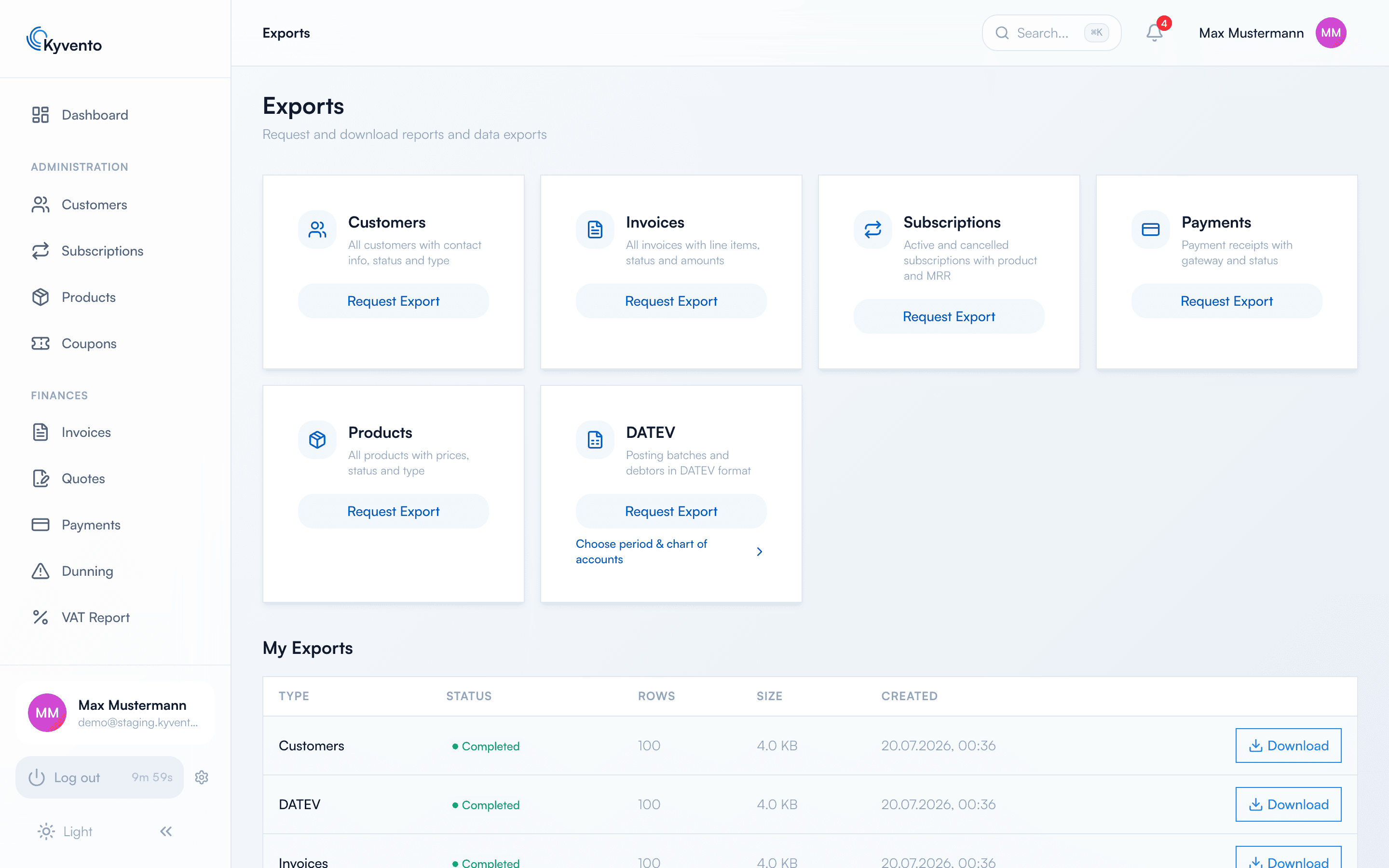
- Produce the DATEV export: request the posting batch for the month just ended. Remember to set the period actively – it is mandatory and not preselected (see Setting up the DATEV export).
- Add to your own records: save additional CSV exports for your files if needed.
What happens when something arrives afterwards
A correction made after the monthly export always becomes a new cancellation document with the current date. It therefore appears in the following month's export and does not change the month already handed over – exactly what a period lock otherwise achieves.
The case is different for an invoice you finalise later with a date in the previous month: it belongs to that month and only appears when you repeat the export for it. The export is read-only and can be repeated as often as you like – you just have to tell your tax firm which version applies.
Recommendations for the cut-off date
- Put the date after your subscriptions' billing runs so all automatic invoices of the month are included – see Billing cycles and key dates.
- Export only once the draft and cancellation review is done. A single complete version saves reconciliation with your tax firm.
- Record the routine in your procedural documentation: who exports when, and where the data goes (see Creating a procedural documentation).
Next steps
- Hand over the posting batch – see Setting up the DATEV export