Maintaining company and tax information
Overview
Your company details are the basis for correct invoices: your company name, address, VAT ID and bank details appear on your outgoing invoices. This article shows you where to maintain this data and what to watch out for.
Where to find your company details
Open "Settings" in the sidebar and select the "Account" tab. The data is organized there into cards. If you've worked through the setup wizard, the most important fields are already pre-filled and can be changed here at any time.
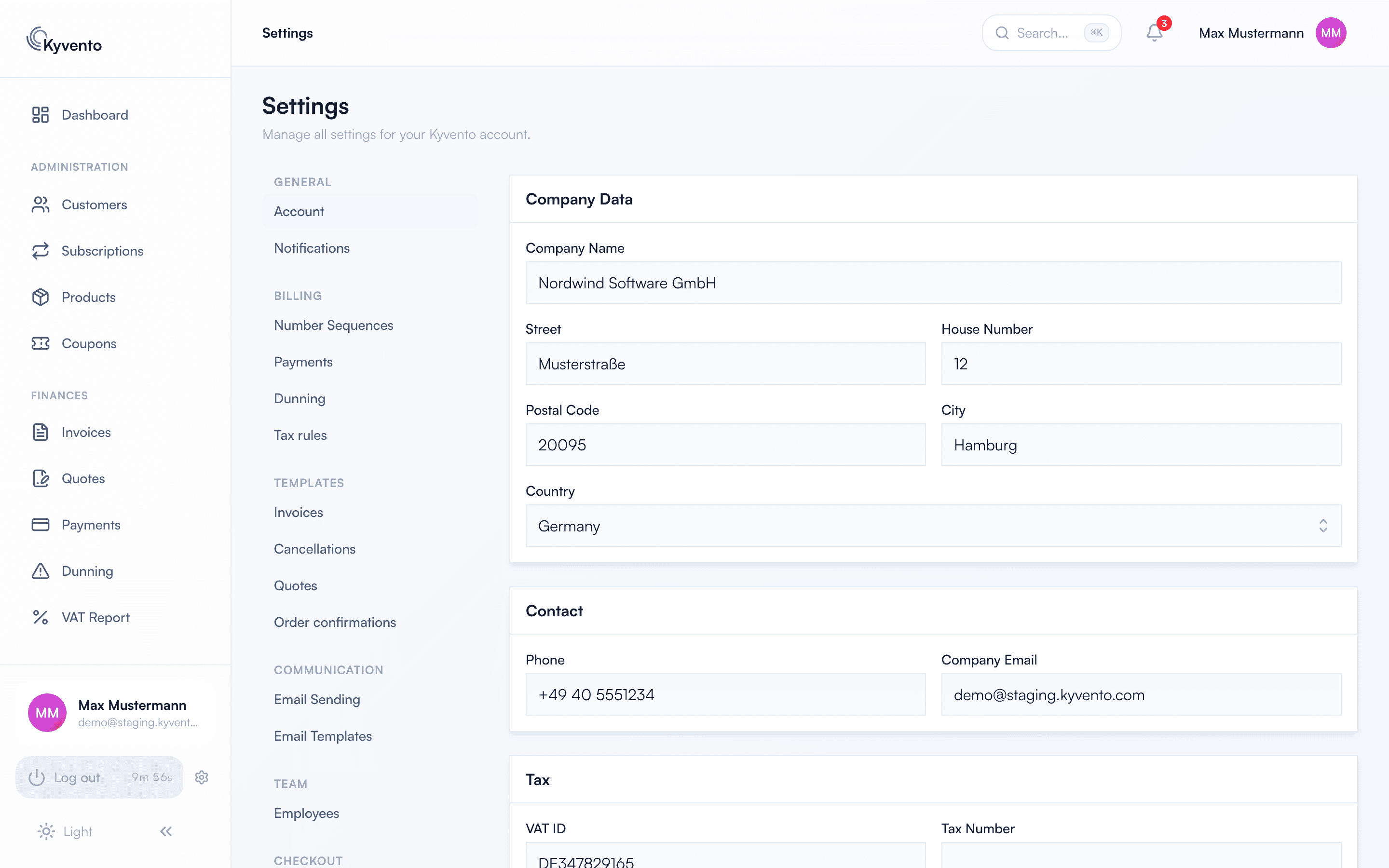
Company details and tax information
The cards "Company details" and "Contact" hold your company's address and contact information — together they form your invoice header. Mind the official spelling of your company name including its legal form.
The "Tax" card takes your VAT ID and your tax number, plus the commercial register number and the register court. Kyvento checks the VAT ID here against the format of the respective EU country — it does not query any register. This is no contradiction to how customer VAT IDs are handled: your customer's ID determines the tax on the document and is therefore verified against the EU VIES system, whereas your own is merely printed.
You set your tax status (standard taxation, the small-business regulation under § 19 UStG, or not liable for VAT) in the setup wizard. Among other things it determines how the invoices you receive from Kyvento are structured.
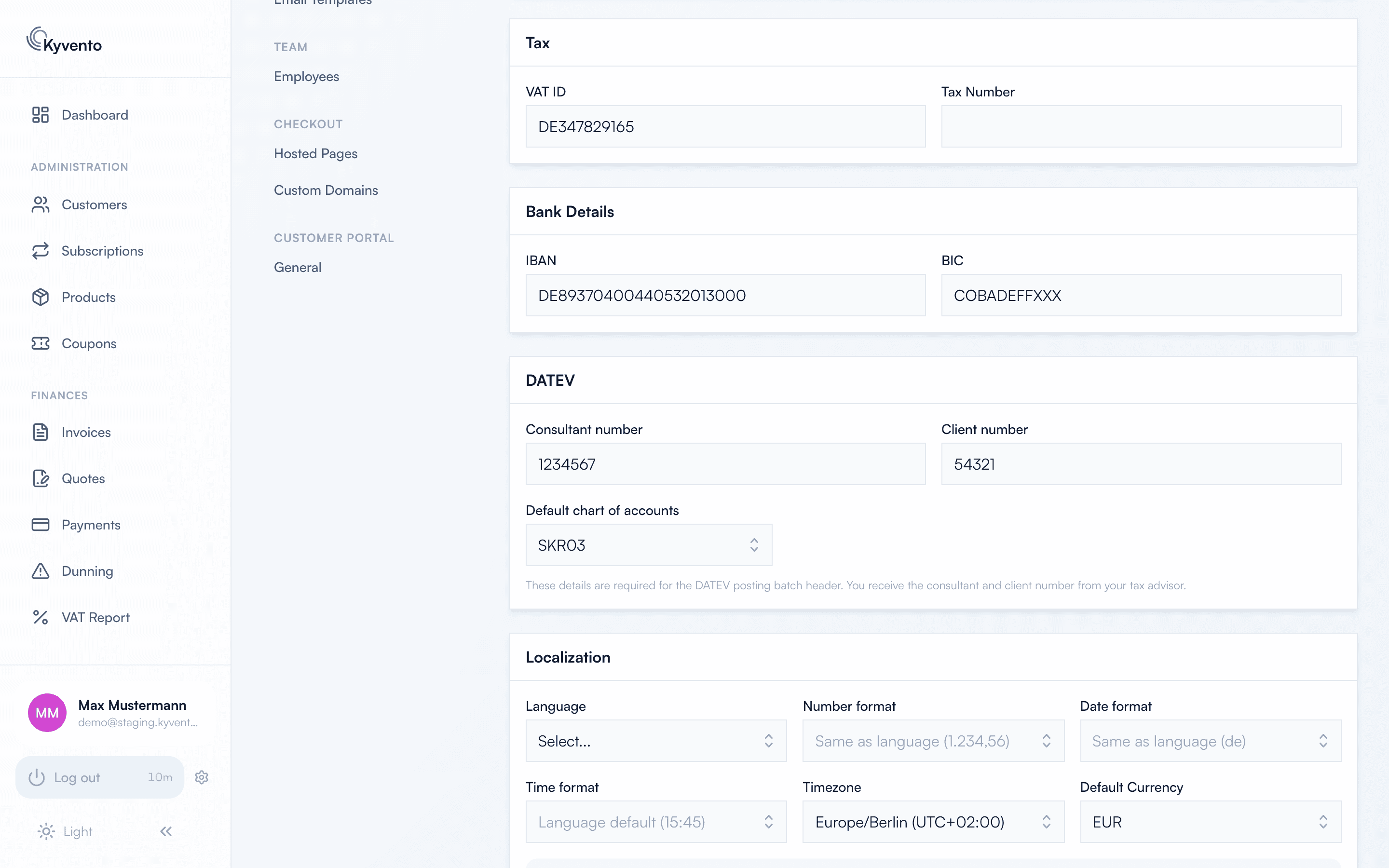
Bank details
In the "Bank Details" card you maintain your IBAN and BIC. Both appear on your invoices so that customers can pay by bank transfer. You do not store a SEPA creditor ID of your own: Kyvento collects direct debits under the creditor ID of your payment service provider — see the article Setting up SEPA direct debit for details.
Localization
The "Localization" card governs language, number and date format, time zone and the default currency of your account.
You confirm the currency once, explicitly: tick "I confirm this account's currency." in this card and save. Until it is ticked, you can neither create a product – not even by duplicating one – nor finalise your first invoice. When you finalise, Kyvento names the reason. When you save a new product, an unrelated message currently appears instead: "The product was modified by another request. Please reload the page." If you see it while creating a product, your currency has not been confirmed yet – reloading does not help; tick the box instead. In the setup wizard you do this in the mandatory "Settings" step. If you left the wizard earlier via "Set up later", add the confirmation here.
From then on: existing documents keep their original currency, and once the first invoice has been finalised, the default currency can no longer be changed. More on this in Multi-currency support.
Logo and invoice header
Via the "Logo" card you upload your company logo; you can also store a favicon. From your company details, the standard invoice layout automatically takes the company name and address, the VAT ID, IBAN and BIC, and the logo.
E-invoicing
For structured invoice exchange, the same tab contains the "E-invoicing" card with your preferred format (ZUGFeRD, XRechnung or Factur-X) and automatic sending. The "Invoice data (e-invoice buyer)" card — with details such as legal form, contact person and routing ID (Leitweg-ID) — applies exclusively to the invoices you receive from Kyvento, not to your own outgoing invoices. Read more in the article E-invoicing: XRechnung and ZUGFeRD.
Seller identifier (GLN)
The "Tax" card holds the optional field "Seller identifier" (with the "Identifier type" selection, e.g. GLN) – field BT-29 of the e-invoice, by which an invoice recipient identifies your company unambiguously. On ordinary invoices your VAT ID does that job; only on non-taxable documents it must not appear. There the document needs your commercial register entry or this identifier instead – with neither, it cannot be sent.
GLNs are issued by GS1 for a fee and consist of 13 digits; Kyvento validates the check digit as well as the length, so no identifier ends up on a document that cannot be resolved anywhere. If you do not have a GLN, leave the field empty. You can fill it in during the setup assistant or add it here at any time.
Next steps
- Customize the appearance of your invoices — see Customizing invoice design
- Set up payment collection — see Setting up SEPA direct debit