Creating your first plans
Overview
Products are the heart of your subscription business: every plan, every one-off service and every add-on is a product in Kyvento. This article shows how to create your first plans.
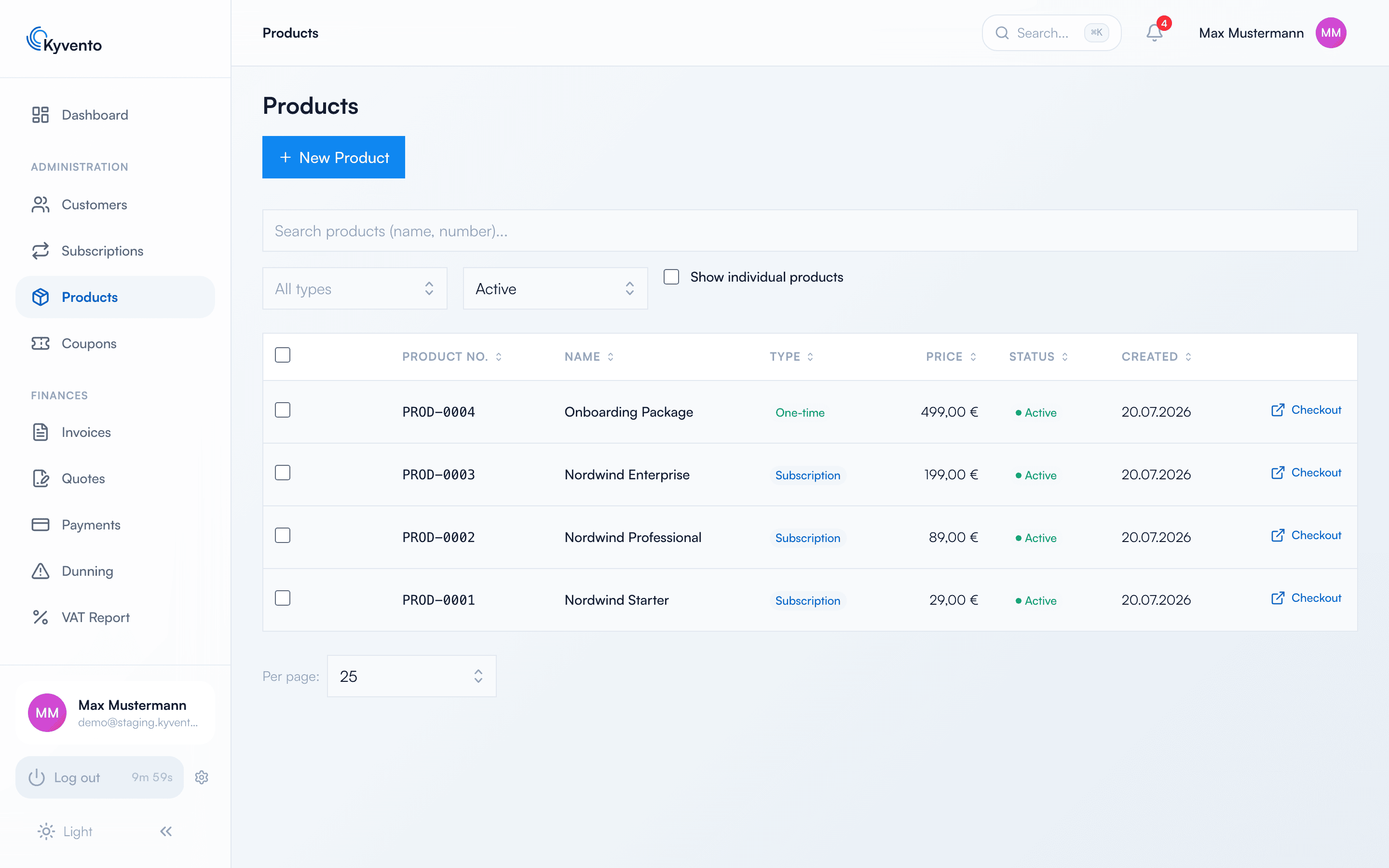
Creating a product
The prerequisite is that your account currency has been confirmed – otherwise Kyvento rejects saving your first product; how to confirm it is explained in Maintaining company and tax information. Then open "Products" in the sidebar and click "New Product". Required are the name, the price (net) and the tax category — plus three tax details that Kyvento cannot guess for you.
The three mandatory tax details
They sit in the "Basics" section and come with no preset: without them the product cannot be saved. Together they determine which country taxes a sale — which is why Kyvento captures them once on the product instead of asking again for every invoice.
- "Type of supply (for tax purposes)" — are you supplying goods or providing a service? This determines which place-of-supply rules apply at all.
- "Place of supply" — where is the service deemed to be supplied?
- "Catalogue service (§ 3a (4) UStG)" — only relevant for private customers outside the EU; there the setting decides whether German VAT applies.
If in doubt, clarify these three details with your tax adviser — they affect every invoice created from the product. Background in Charging VAT correctly.
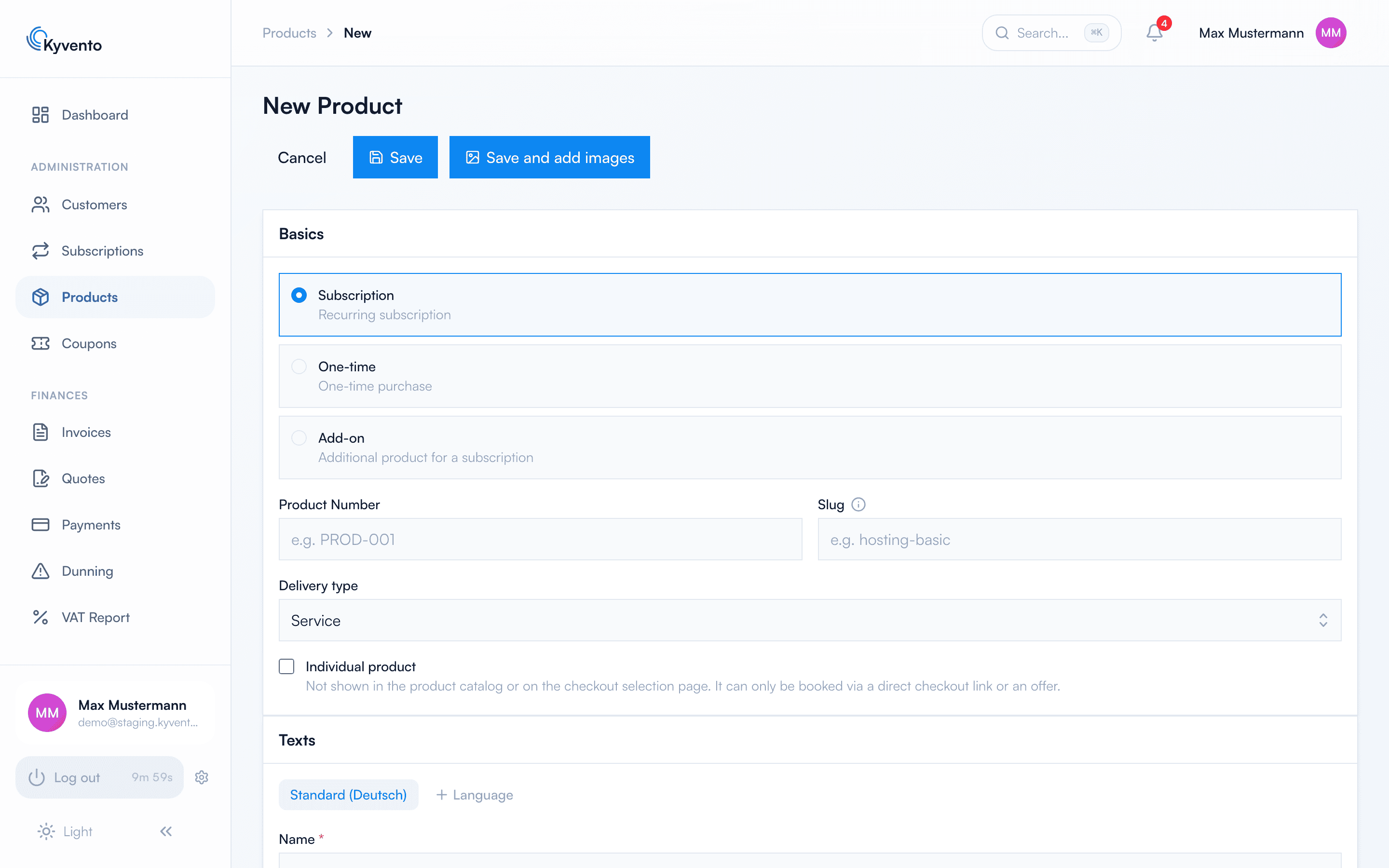
Everything else comes preset: type "Subscription", monthly billing, pricing model "Flat rate", currency and tax rate from your account settings. Kyvento assigns the product number and the slug (for checkout links) automatically, but you can set both yourself.
The three product types
- Subscription — recurring service with a billing cycle
- One-off — single purchase without renewal
- Add-on — additional product customers book on top of a main subscription
Pricing models
Besides the flat rate, quantity-based models are available: per unit, tiered (each price tier applies only to its own units) and volume-based (the tier reached sets the price for the entire quantity). For these models "Multiple bookable" is enabled automatically so customers can book quantities greater than 1.
You can enter the price either as a net or as a gross amount — the switch sits above the price field as "Price entry".
Trial periods for your customers
With "Trial Period (days)" you offer free trial periods: a payment method is still requested at checkout but is not charged during the trial — the first invoice is created once the trial period ends.
Two switches that are easily missed
- "Cancellable in the customer portal" — on by default. Switch it off and the cancel button for this product disappears from the customer portal. In that case be sure to state the cancellation route, see Managing cancellations.
- "Individual product" — the product appears neither in the catalogue nor on the checkout selection page; it can only be booked via a direct checkout link or a quote. Useful for individual customer terms.
Product status
- Active — bookable and visible in the catalogue
- Archived — no longer bookable and hidden on hosted pages; existing subscriptions continue unchanged. Archived products remain reachable via the status filter of the product list.
Next steps
- Refine prices and terms — see Creating a plan: step by step and Pricing models: monthly, yearly, usage-based
- Offer additional options — see Defining add-ons and extras