Payment terms and due dates
Overview
The payment term determines when an invoice is due — and from when Kyvento treats it as overdue and dunning can kick in. This article shows where you set it and how overdue items become visible.
Three levels, the most specific one wins
Kyvento looks for the payment term in this order and takes the first match:
- Per invoice — for a manual invoice you set the payment term or the due date directly in the editor.
- Per customer — the "Payment Terms (days)" field in the customer profile, for example for a major customer with an agreed 30 days.
- Account default — under "Settings" → "Account" on the "Invoicing" card, the "Default payment terms (days)" field. The preset is 14 days.
In practice: keep the account default short and grant longer terms deliberately to the customers who need them. A generous account default extends your receivables for every customer.
The exception: invoices with customer credit offset
An invoice against which Kyvento offsets customer credit carries no payment term — it is due immediately. That is not a bug but a necessity: an offset is a set-off in the legal sense and requires a counterclaim that is already due (§ 387 BGB). With a payment term, the receivable would not yet be due on the invoice date — and the set-off would be ineffective.
The case arises when both are true: the settings permit offsetting for this document, and the customer holds credit in the document's currency. What counts is the intent, not the outcome: if the offsetting ends up finding nothing, the invoice gets its regular payment term back.
How credit is offset is described in Credit notes and cancellations.
Identifying overdue invoices
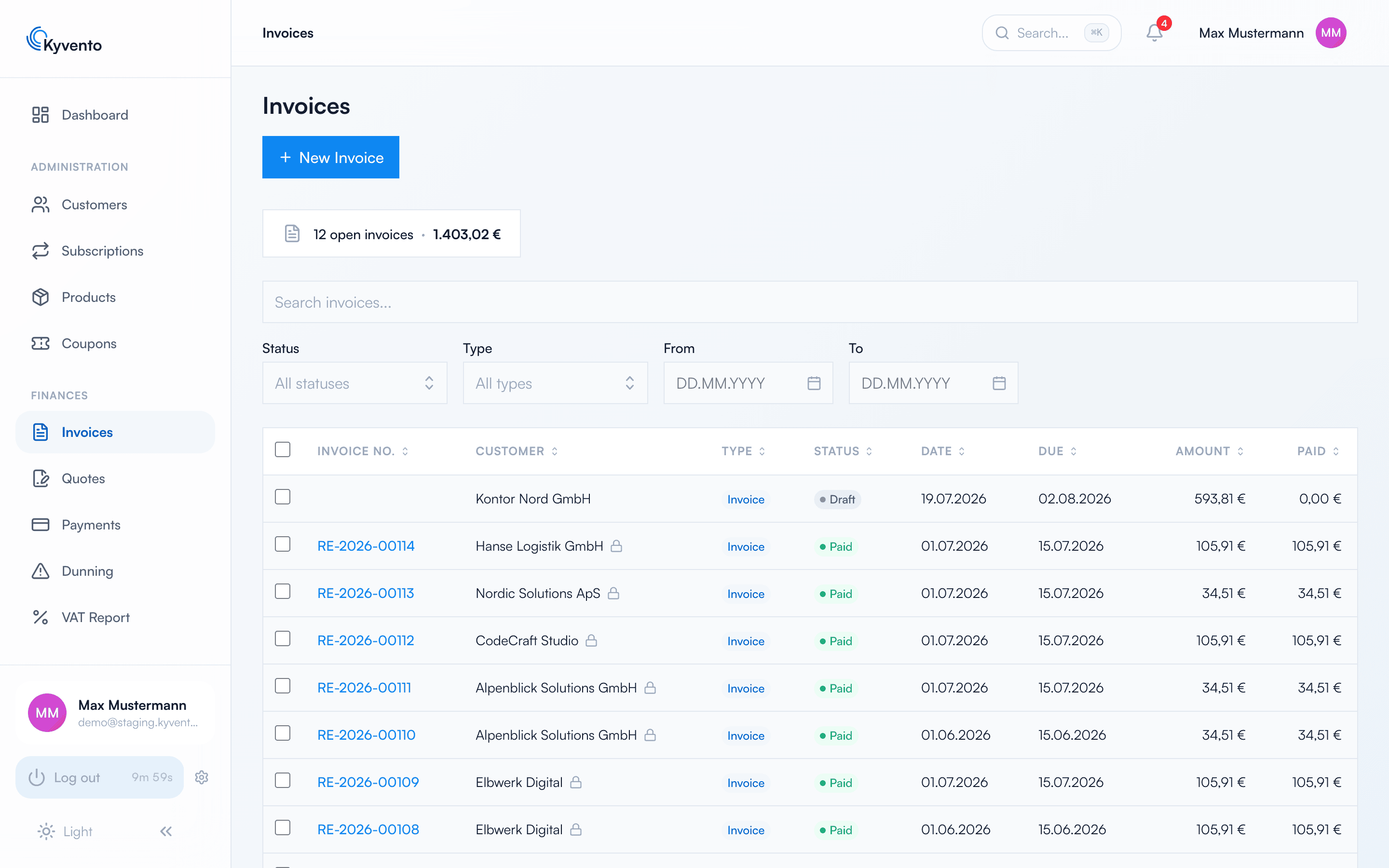
Once the deadline has passed, a daily check run marks the invoice as "Past Due" — visible in the invoice list, where you can also filter by it, and totalled in the dashboard metric "Open Invoices".
From due date to reminder
The friendly "Payment Reminder" is already the first dunning level in Kyvento — so there is no gap between "due" and "dunned". Under "Settings" → "Dunning" you set the waiting time per level in the "Days after previous level" field.
Mind the reference point: for the payment reminder the days are counted from the due date, for all further levels from the previous level. Details in Enabling automated dunning.
One exception: direct debit
Where you collect by SEPA direct debit, the payment term hardly matters — collection happens on the key date anyway. It stays important for everything that goes out on account.
Next steps
- Automate reminders — see Enabling automated dunning
- Understand due dates in the subscription rhythm — see Billing cycles and key dates