Enabling automated dunning
Overview
Automated dunning pursues overdue invoices without any action on your part: Kyvento detects late payment, sends staggered payment reminders and dunning notices, and escalates all the way to suspending the subscription. This article shows how to enable it and explains what then happens automatically.
Turning on dunning
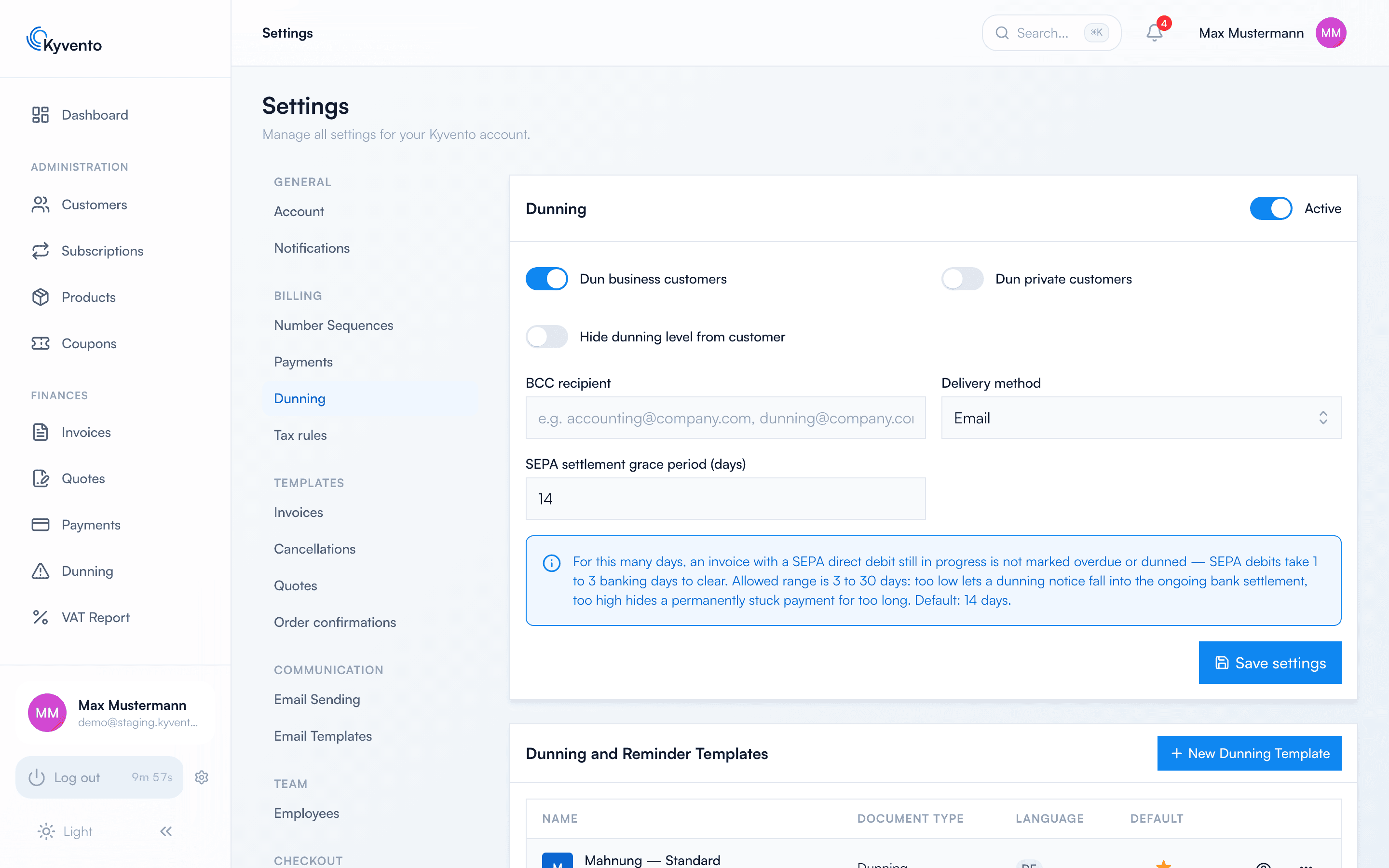
Open Settings → "Dunning" (the "Billing" group). As long as dunning is off, no dunning run takes place – so you can set everything up at your leisure and only then flip the "Active" switch. When you activate it, Kyvento creates the default dunning levels, which you then adjust (see Customizing dunning levels and texts).
On the same page you decide which customer groups are dunned at all and how the notices are delivered. The fields are labelled and carry their own explanatory hints, so this article does not list them.
What happens automatically after activation
- Detecting overdue status: At night, Kyvento checks all open invoices. If the due date (in your account time zone) has passed, the invoice switches to the "Overdue" status.
- Dunning run: Shortly afterwards, the daily dunning run checks for every overdue invoice whether the waiting time of the next level has been reached – and then sends the payment reminder or dunning notice. The dunning PDF is always attached; the original invoice is added as a second attachment as long as its PDF can be generated.
- Escalation: If payment fails to arrive, the invoice climbs the dunning ladder level by level – up to automatic payment retry, suspending the subscription, and marking the receivable as uncollectible, depending on what you enabled per level.
- Automatic end: As soon as payment is received in full, the dunning process ends immediately on its own – see Matching incoming payments automatically.
Which invoices are dunned
Automatic dunning applies to subscription invoices with an open amount. Manually created invoices only take part if you explicitly enable dunning on the individual invoice – so a one-off special invoice never ends up in the dunning loop unintentionally.
When an overdue invoice is not dunned, the cause is almost always one of a few: a dunning hold is set, the customer is excluded from dunning, the customer has no email address on file, or the dunning email template is disabled. The "Dunning" card on the invoice detail page names the reason in plain words – only after that is it worth searching the settings.
Seeing the dunning state of an invoice
The same card shows the "Dunning History": which level was delivered when and how, which fee was charged, and how a payment retry turned out. When the next notice would be due is not shown there – that is what the forecast in the dunning area is for (see Open receivables at a glance). Individual invoices can be paused in the same place, see Pausing or suspending dunning notices.
Good to know
- Payment reminders and dunning notices do not receive their own invoice number – they are not invoices within the meaning of Section 14 of the German VAT Act (UStG) and do not create gaps in your number ranges.
- Dunning fees are set to 0 out of the box: Kyvento charges none on its own. Whether you charge any is your decision per level – see Charging dunning fees.
Next steps
- Set up levels, texts and fees – see Customizing dunning levels and texts
- Understand and adjust deadlines – see Setting dunning deadlines
- Keep an eye on ongoing dunning – see Open receivables at a glance