Enabling two-factor authentication
Overview
Two-factor authentication (2FA) protects your account even if your password falls into the wrong hands: at login, a time-based code from your authenticator app is also requested. We recommend enabling 2FA right after setting up your account.
Enable 2FA
- Via the user area in the sidebar, open "My profile" → the "Sign-in & security" tab.
- In the "Two-factor authentication" card, click "Set up 2FA".
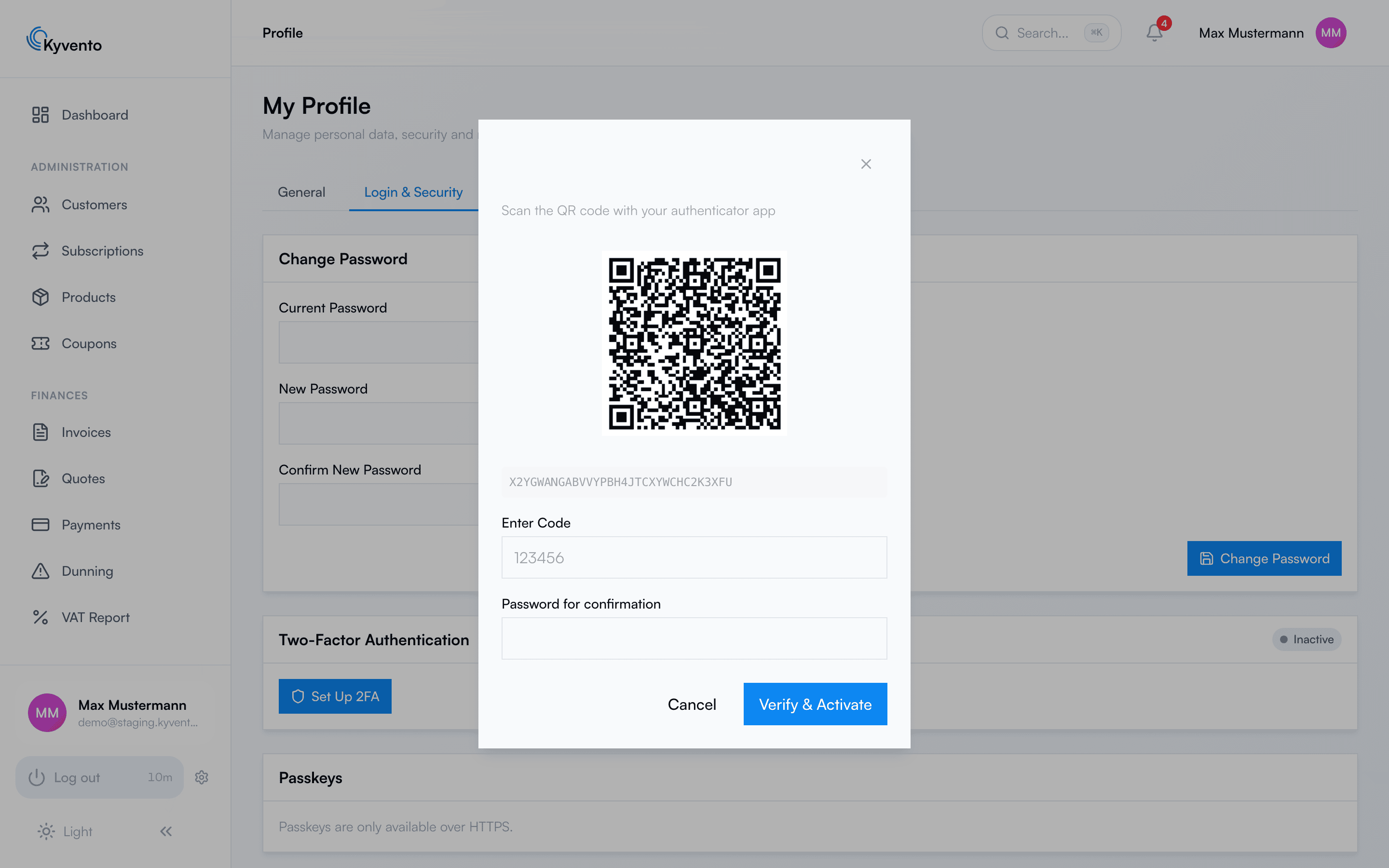
- Scan the QR code with your authenticator app (e.g. Google Authenticator, Aegis, 1Password). Alternatively, enter the displayed key manually.
- Enter the code from the app and confirm with "Verify & enable".
Save your recovery codes
After activation, Kyvento displays a set of recovery codes once. Keep them somewhere safe (a password manager or a printout) — they are your way in if you lose the device with the authenticator app. Later you'll only see how many codes are left, no longer the codes themselves. Via "Generate new codes" (with password confirmation) you create a fresh set if needed — the old codes become invalid in the process.
Logging in with 2FA
After you enter your email and password, Kyvento asks for the code from your authenticator app. If you don't have your authenticator app at hand, use the "Use a recovery code?" link and enter one of your codes — each code works exactly once. When the codes start running low, Kyvento reminds you to generate new ones.
Disable 2FA
In the same tab via "Disable 2FA" — for security reasons with password confirmation.
Even more convenient: passkeys
In the "Passkeys" card you set up passwordless sign-in via "Add passkey" — for example using a fingerprint, Face ID or a hardware key. Give it a name, confirm the browser dialog, done. Passkeys can be renamed or deleted at any time.
Active sessions and devices
In the same tab, the "Active sessions" card shows where your account is currently signed in. Via "End" you sign out a single other session, and via "End all other sessions" all devices except the current one — ideal if you've lost a device.
Security actions automatically sign out other devices: if you change your password, disable 2FA, generate new recovery codes or delete a passkey, all other sessions are ended immediately — your current device stays signed in, so there's no self-logout. API tokens deliberately remain valid when you change your password so that running integrations don't break — if you want to renew them as well, revoke them in the token management. That way, a potentially unauthorized session won't survive the very action you use to regain control.
Next steps
- Set up your profile in full — see Creating and setting up your account