Pausing or suspending dunning
Overview
Not every overdue invoice should be dunned – for example during a complaint, an installment arrangement or an ongoing goodwill review. With the dunning hold you suspend dunning for individual invoices without losing the previous dunning history.
Placing a dunning hold
The dunning hold applies per invoice and can be set in two places:
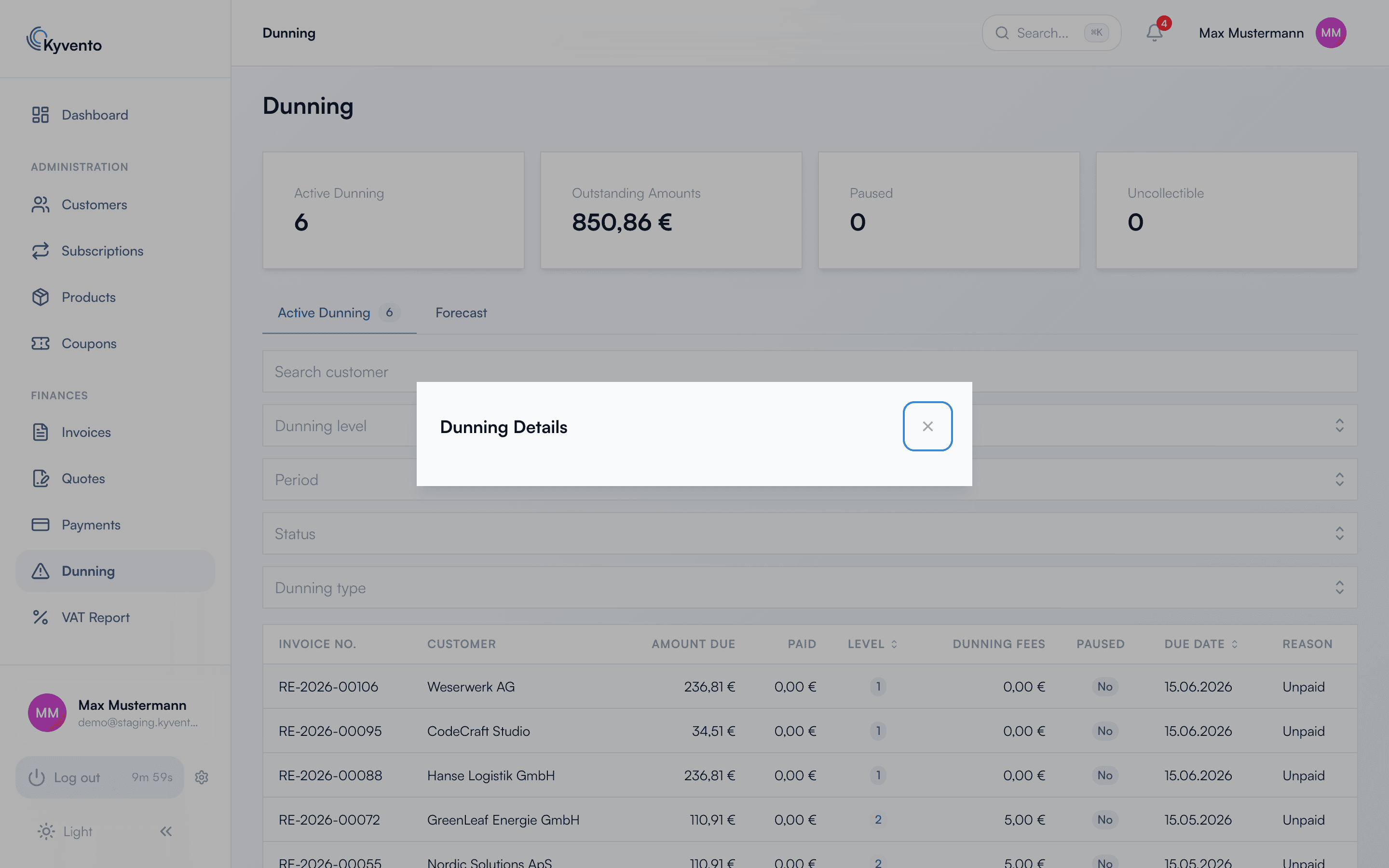
- In Dunning: Under "Dunning" → "Active dunning notices" tab, open the details of a dunning notice (click the row). The "Dunning details" dialog shows the level, open amounts and the dunning history – the "Stop dunning" action places the hold.
- On the invoice detail page: There, the same action is available for overdue invoices as "Activate dunning hold"; a hold that has been set can be lifted again via "Resume dunning".
What the dunning hold does
- The daily dunning run skips the invoice – no further dunning notices are sent and no new fees become due.
- The dunning level reached remains in place – on resuming, it continues at the same point, the history does not start over.
- The pause and resumption are recorded in the dunning history – you can later trace exactly when and for how long dunning was suspended.
- In the dashboard, the "Dunning hold active" metric counts all paused cases; the "Dunning hold" column marks them in the list.
Bigger levers: groups and the entire system
There is no subscription-wide pausing – the dunning hold deliberately works per invoice. Customer-wide, dunning can be switched off via an exclusion list: the excluded_customers field of the dunning settings takes the public customer identifiers (format cust_…) whose invoices the dunning run skips entirely. The list can currently only be maintained via the REST API (dunning settings), not in the interface. For coarser interventions, the settings switches are available:
- "Dun business customers" / "Dun private customers" deactivates dunning for an entire customer group.
- The "Active" switch stops the automatic dunning run entirely – the configuration is retained.
Good to know
- A dunning hold does not change the due date: the invoice remains overdue and in view – only the automatic escalation rests.
- If payment is received in full during the hold, the dunning process ends completely on its own as usual.
Next steps
- Automatic end on incoming payment – see Matching incoming payments automatically
- Handling uncollectible receivables – see Debt collection and external providers