Subscriptions in Kyvento renew automatically – unless you decide otherwise. This article explains how to control the renewal behavior per plan and how to intervene in individual cases.
Controlling renewal per plan
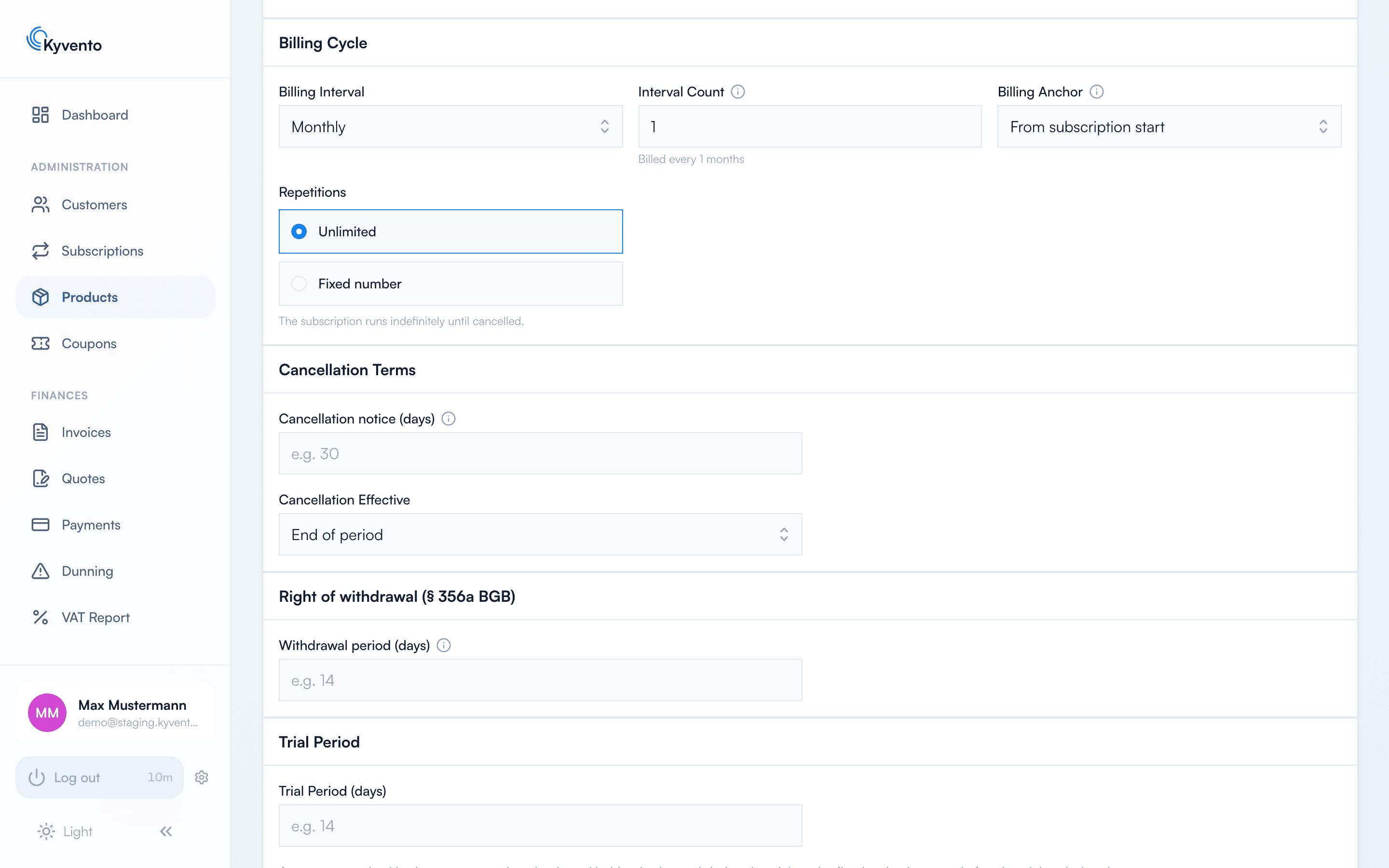
You define the behavior in the product form, in the "Billing cycle" section, via the "Repetitions" field:
"Unlimited" (default) – the subscription renews automatically period after period until it is cancelled. The hourly billing run generates the next invoice on each billing date.
"Fixed number" – the subscription ends by itself after the specified number of billings; no cancellation is needed and no further invoice is created. The booking invoice counts as the first billing (with a trial, no invoice is created at booking, so all billings from the trial end count). Until the last billing date the subscription stays "Active"; only when the next billing date falls due and no repetition is left does it switch to the status "Expired". If the subscription is "Past Due" at that moment, this switch does not happen.
"Repetitions" controls automatic renewal: unlimited or a fixed number
Letting an individual subscription expire
If a particular subscription should not renew further, use "Cancel subscription" → "Cancel at the end of the period": the customer keeps the paid remaining term, after which the subscription ends automatically – this is the intended way to stop a renewal in an individual case.
Adjusting the billing date in individual cases
On the subscription detail page, you'll find two tools for special cases:
"Reschedule next billing" – sets the next billing date manually. A date in the past causes the next billing run to create an invoice immediately.
"Start billing cycle now" – creates the next invoice immediately and triggers the charge via the default payment method (possible as soon as the billing date has been reached).
Good to know
Kyvento automatically informs the end customer about the upcoming renewal of a trial subscription by email (3 days and 1 day before the trial ends) – provided the customer has an email address on file and the email template "Trial ending reminder" is active in your account.
The billing run checks all due subscriptions hourly and compares the exact time of the billing date – billing dates are therefore processed to the hour, not to the second.