Handling upgrades and downgrades
Overview
Customers grow – and their plans should grow with them. Kyvento handles plan changes with a fair pro rata settlement, automatically distinguishing between an upgrade and a downgrade.
Changing a plan
Open the subscription ("Subscriptions" → select the subscription) and click "Change plan". In the dialog, you select the new product – Kyvento handles the rest based on the price comparison:
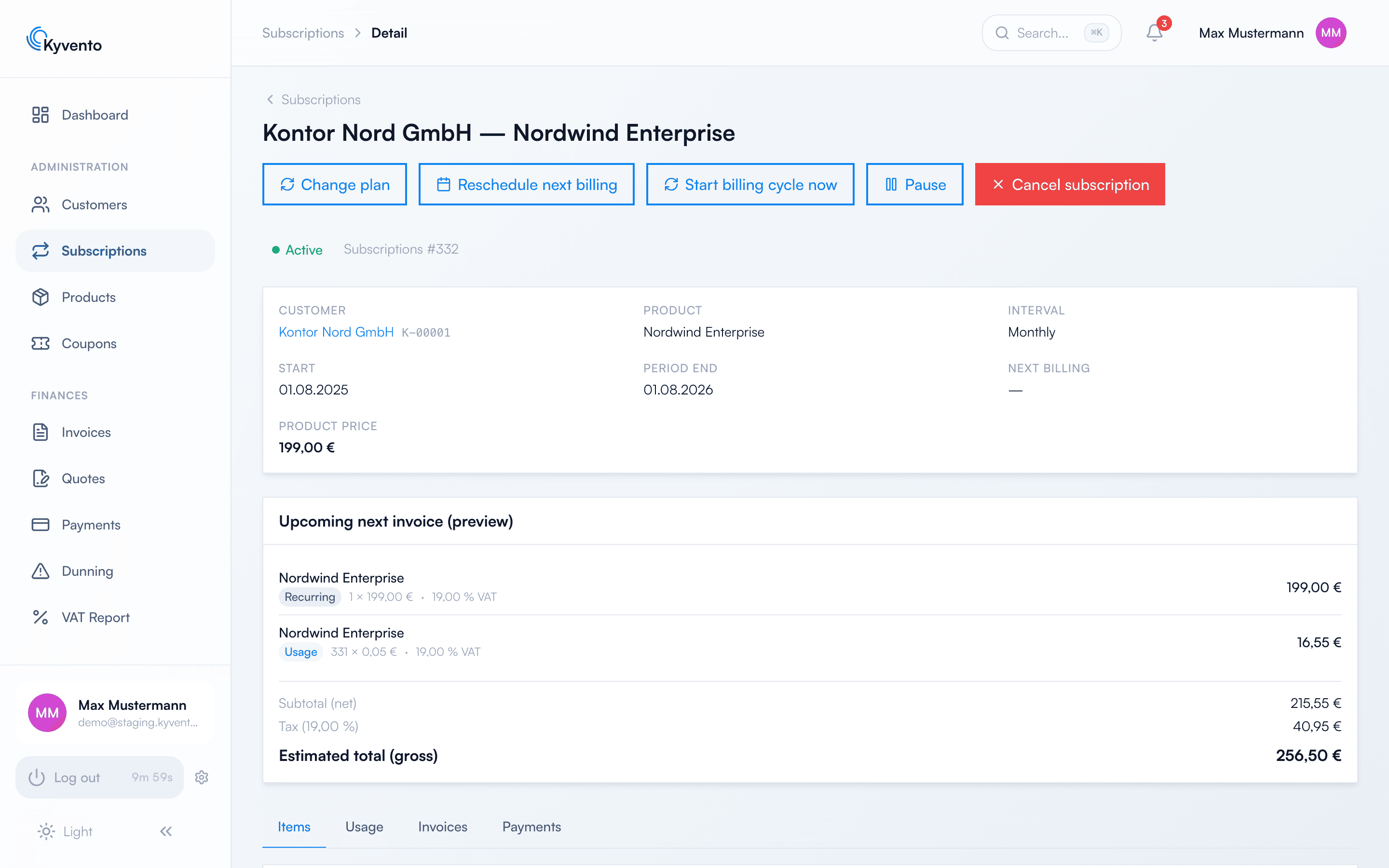
Upgrade: effective immediately
If the customer switches to a more expensive plan, the new plan applies immediately. Kyvento promptly creates a separate proration invoice: it contains the full price of the new plan for a new billing period starting at the time of the change, less a credit calculated to the day for the unused remainder of the old plan. If the automatic card charge fails, the upgrade still remains active – the open invoice then goes through the normal payment and dunning process.
Downgrade: at the end of the period
If the customer switches to a cheaper plan, the change is scheduled and only takes effect with the next regular billing – the customer keeps what they paid for, and no credit note complexity arises. Until then, the scheduled change can be undone at any time.
Self-service in the customer portal
Your customers can also initiate the plan change themselves in the customer portal – with the same upgrade/downgrade logic. You control whether to allow this under "Settings" → "Customer portal" → "General" via the customer permissions ("Change plan"). The customer can revoke a scheduled downgrade there via "Undo plan change".
An individual price instead of a plan change
Sometimes it is not the plan that should change, only the price for one particular customer. For that, the subscription detail page offers the action "Set price" on the line item: the agreed price applies per unit and replaces the product's pricing model entirely — including its price tiers. It takes effect with the next billing run; invoices already issued remain unchanged.
If the product has tiered prices, Kyvento warns you from which quantity onwards your fixed price would be more expensive than the tier — the customer would then pay more than without the arrangement.
Good to know
- The pro rata calculation is done to the day, with EN 16931-compliant rounding.
- Add-ons do not carry over automatically – check the supplementary options after a change.
- An upgrade starts a new term: the billing period restarts at the time of the change, and the period end shifts accordingly. A downgrade leaves the current period unchanged.
Next steps
- What happens at the end of a contract – see Managing cancellations