Confirming mandatory notices from Kyvento
Overview
Kyvento informs you about maintenance and disruptions with a banner at the top of the workspace and on the login page. Most of these notices can be dismissed. A few are different: with a mandatory notice — about updated terms of use, for instance — Kyvento requires you to explicitly take note of the message before you continue working. This article explains what happens then and what applies. Only you and your team see a mandatory notice, in the app. Your customers notice nothing of it — neither in the customer portal nor in the checkout.
What you see
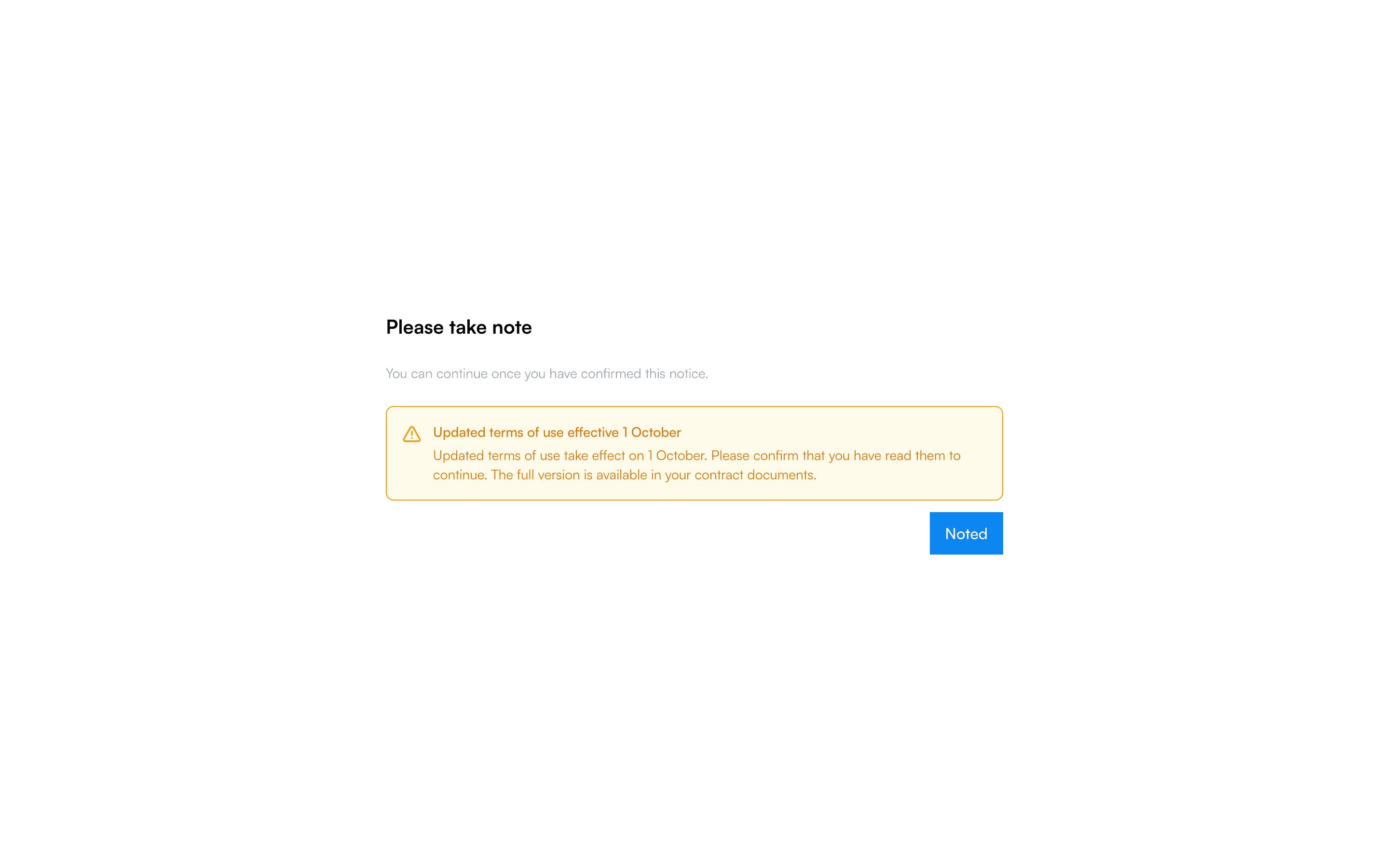
As soon as a mandatory notice is ongoing, Kyvento takes you to the page "Please take note" at your next step in the app. It shows the notice with title, text and — where available — the period and a link to the status report. With the button below it you confirm that you have taken note; after that you return to the dashboard.
Until then: the app does not let you continue working. Every attempt to load another page ends up on this page again. That is not an error and not a sign of a blocked account, but the intended effect of a mandatory notice.
What remains possible
Kyvento exempts a few things from the block so that you cannot lock yourself out:
- Logging out works at any time.
- Changing your password and setting up or confirming two-factor authentication remain reachable.
- Your integrations keep running. Calls made with an API key are not held up — a mandatory notice does not interrupt an automated connection.
Who has to confirm
The confirmation applies per user, not per account. If a colleague confirms the notice, another user of the same account still ends up on the page — at the latest with their next click. Nobody needs a special permission for it; every signed-in user confirms for themselves.
Once confirmed stays confirmed: neither logging in again nor a later text change to the same notice asks for the acknowledgement a second time.
How mandatory notices differ from other notices
- Ordinary Kyvento notices appear as a banner in the app and on the login page. If they are marked as dismissible, you close them with one click.
- Mandatory notices are never dismissible. They appear as a page of their own and hold up the work until every user has confirmed them.
- Whether Kyvento notices also reach your customers in the portal or checkout is controlled separately — see Service notices for your customers.
Next steps
- Creating notices of your own for your customers — see Service notices for your customers
- Setting up two-factor authentication — see Enabling two-factor authentication