Assigning bookkeeping accounts (SKR03/SKR04)
Overview
Every posting line in the DATEV batch needs two accounts: the receivable account (who you billed) and the revenue account (what for). You set both up once – the receivable side account-wide, the revenue side per product. This article covers both.
Receivable side: individual debtors or a collective account
Under Settings → Account, "DATEV" section, you will find the "Receivable accounts" block. There, under "Posting of receivables", you make a decision that Kyvento deliberately does not make for you:
- "Individual debtors (one account per customer)" – every customer gets their own debtor account, assigned consecutively from the "First debtor number" your tax firm gives you (usually five digits from 10000). Your tax firm then sees the open items per customer.
- "Collective account (one account for all)" – all receivables run onto a single account number (with SKR03 usually 1400, with SKR04 1200). No per-customer accounts are kept.
Which variant is right is for your tax firm to decide, not the software: clients who prepare a balance sheet almost always keep personal accounts, while cash-basis accounting (EÜR) often does not want them. As long as nothing is selected, no posting batch is created at all.
These settings are freely selectable only once. As soon as a real posting batch has gone to your tax firm, they are locked – a later change would post the same customers to different accounts there. A test export locks nothing; use it to try things out.
With individual debtors you can also set an account yourself: the customer record holds the field "DATEV debtor account". If you leave it empty, Kyvento assigns the number during the export. This is the route when a customer already has an account in your tax firm's bookkeeping.
Revenue side: four accounts per product
The product form holds the section "DATEV Accounts (revenue accounts)". Which of the four accounts applies is decided per invoice by the customer's tax status:
- Domestic – taxable supplies in Germany (the standard case)
- EU B2B – intra-community supplies to businesses (reverse charge)
- EU B2C – sales to EU private customers (OSS scheme)
- Non-EU – tax-free supplies outside the EU
Which scenario applies in a given case follows automatically from your tax configuration and the customer data (country, VAT ID) – see Charging VAT correctly.
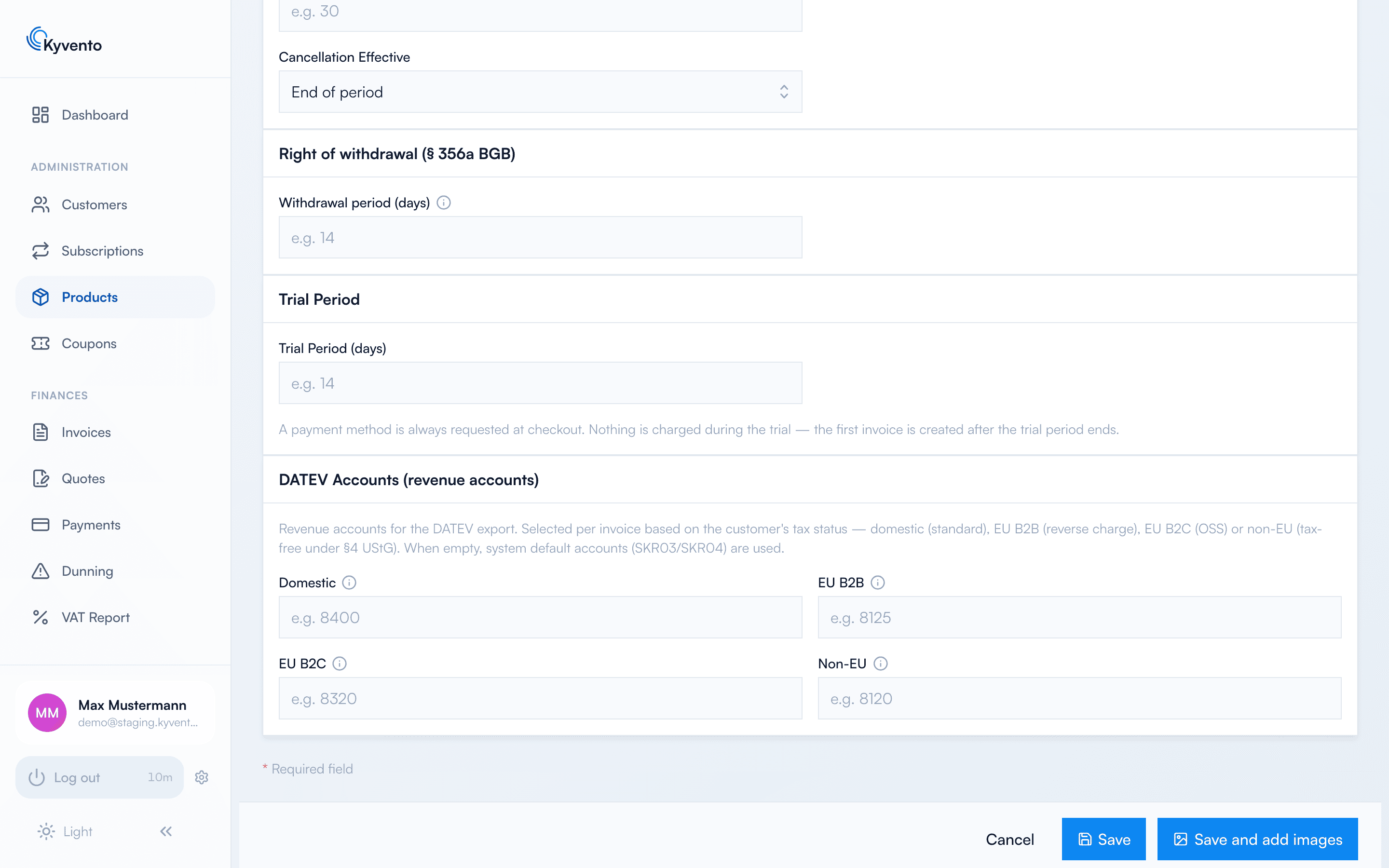
Empty fields are fine
Without an entry, the export falls back to the system defaults of the respective chart of accounts:
- SKR03: domestic 8400, EU B2B 8336, EU B2C 8339, non-EU 8338
- SKR04: domestic 4400, EU B2B 4336, EU B2C 4339, non-EU 4338
Note the EU B2C account: it is the OSS revenue account (8339 or 4339), not the domestic one. Distance sales to EU private customers are therefore kept separate from the start and need no later reclassification.
Your own accounts pay off as soon as your tax firm wants revenue broken down by product line – one account per plan family, for example. Agree the numbers with your tax advisor in any case.
Two accounts for dunning fees
If you charge dunning fees, they need a revenue account of their own – they are damages for late payment and not a taxable supply, so they do not belong on your products' revenue accounts. If the field stays empty, the posting batch simply contains no dunning fees.
On top of that comes an account for waived fees, posted when you permanently waive an outstanding dunning fee. Without it the DATEV export stops as soon as such a waiver falls into the period. Both fields live in the same DATEV section of the account settings; Kyvento suggests common numbers for the chart of accounts you chose.
Recommended order
- Settle chart of accounts, receivable mode and debtor base number with your tax firm and enter them.
- Enter the revenue accounts per product – or deliberately use the defaults.
- Set the dunning fee accounts if you charge fees.
- Produce a test export and have your tax firm import it on trial – only this step shows whether the accounts fit, and it still locks nothing.
Good to know
The accounts affect the DATEV export only – they have no influence on invoicing, tax calculation or amounts.
Next steps
- Generate and hand over the posting batch – see Setting up the DATEV export
- Set up dunning fees – see Charging dunning fees