Sometimes a subscription should merely rest rather than end – for seasonal businesses, payment arrangements or when a customer is away for a longer period, for example. With the pause function, you freeze a subscription without cancelling it: the customer keeps their contract but is no longer billed.
Pausing a subscription
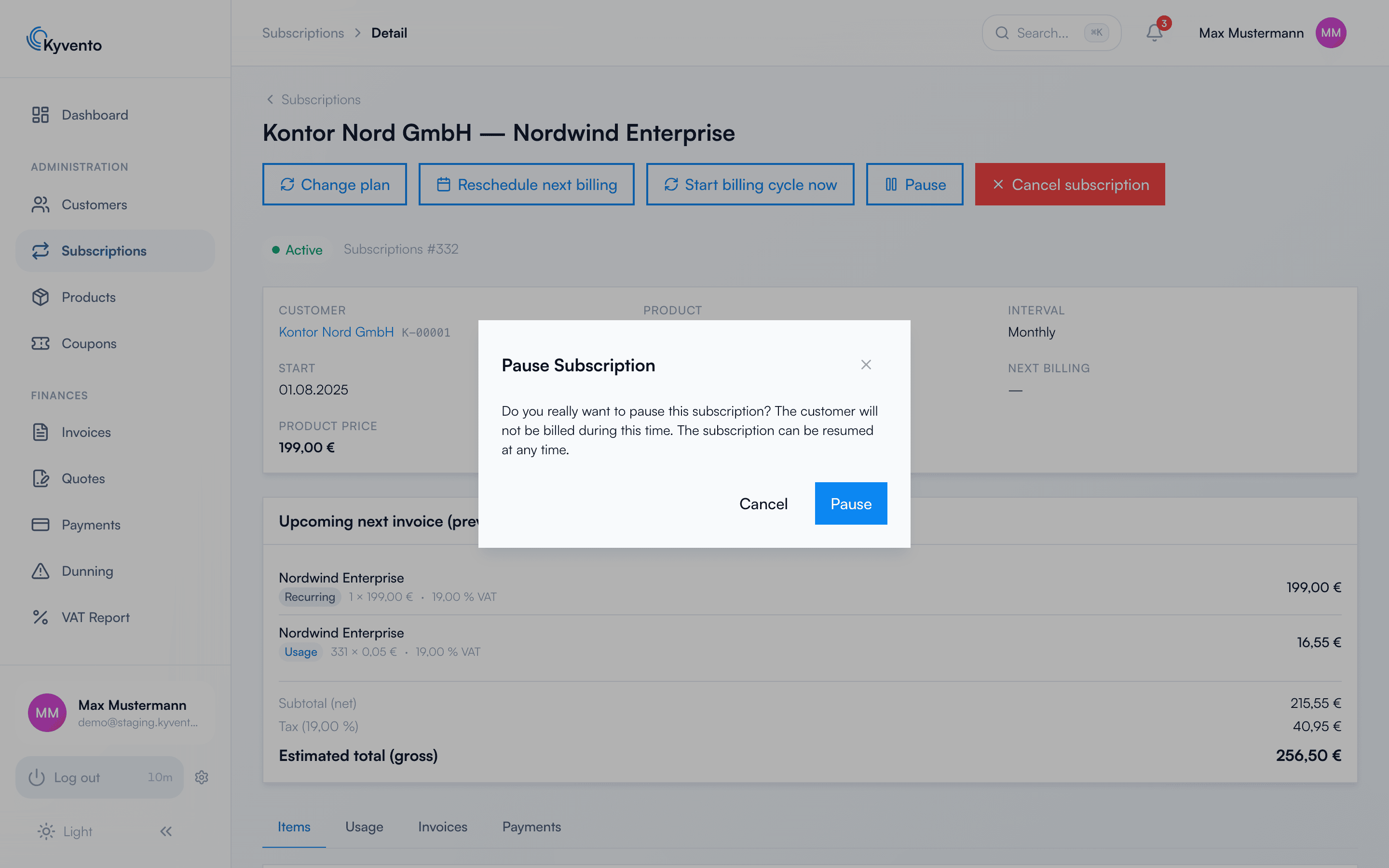
Open the subscription ("Subscriptions" → select the subscription) and click "Pause". After confirmation, the subscription switches to the status "Paused".
"Pause" opens the confirmation dialog – only its "Pause" button suspends the subscription; the customer is not billed during this time
What happens during the pause
No billing: during the pause, no new invoices and no renewals are created.
No lost time: when resuming, Kyvento shifts the end of the current billing period by exactly the pause duration – the customer doesn't lose any time they've already paid for, and there is no immediate new charge.
Billing day: if the product bills "From subscription start", the billing day is permanently set to the day of the new period end – not just for the current period. With every calendar anchor – "Start of month", "Start of year", "Fixed calendar day" and a billing day agreed via the API – the anchor stays put: the current period ends on the shifted date, the following period is shorter and billed pro rata, and after that the subscription runs on the anchor date again.
Transparency for the customer: in the customer portal, the subscription is shown as "Paused". Only you start and end the pause itself – there is deliberately no self-service option for the customer.
Resuming a subscription
On the subscription detail page, you can end the pause at any time via "Resume". Billing continues seamlessly from that moment, with the billing date shifted accordingly.
Pause or cancel?
Pause if the customer relationship should continue – the contract remains in place and resuming is a single click.