Sending invoices by email
Overview
Kyvento sends your invoices as an email with a PDF attachment. This article shows what exactly goes out, where you set the delivery route and how to check whether a message arrived.
What is attached to the email
An invoice email always carries the invoice PDF. If the PDF cannot be produced, no email leaves the house — nobody should receive an invoice email without the invoice.
If an e-invoice has been generated for the document, Kyvento attaches it as well. With ZUGFeRD that is a single attachment — the hybrid PDF already carries the XML data inside it. With XRechnung there are two: the PDF to read and the XML file for your customer's accounting. Details in E-invoicing: XRechnung and ZUGFeRD.
Subject and body come from the email templates — which one applies when is described in Automatic invoice creation.
Sender and delivery route
Under "Settings" → "Email Sending" you set the sender name and address and choose the transport: standard delivery via Kyvento or your own mail server (SMTP). That choice determines which sender address your customers see in their inbox — why that is so is explained in Which sender address your customers see.
On the same page, Kyvento checks live at the push of a button whether SPF, DKIM and DMARC are set for your domain. Correct records improve deliverability considerably — for sending through your own mail server they are practically a prerequisite.
Testing a template beforehand
Before a changed template goes out to customers, send it to yourself via "Send test". You find the templates under Settings → "Communication" group → "Email Templates"; the "Templates" group, by contrast, holds the PDF document templates.
- What goes out is exactly the language version you currently have open — that way you check the German and the English variant separately.
- The button is only active once the template is saved. Kyvento deliberately does not create a template in the background for a test — otherwise your overview would list a "customized" template that nobody customized.
- Only addresses belonging to your own account are permitted as recipients. If an address is rejected, the message states the reason.
Checking whether a message arrived
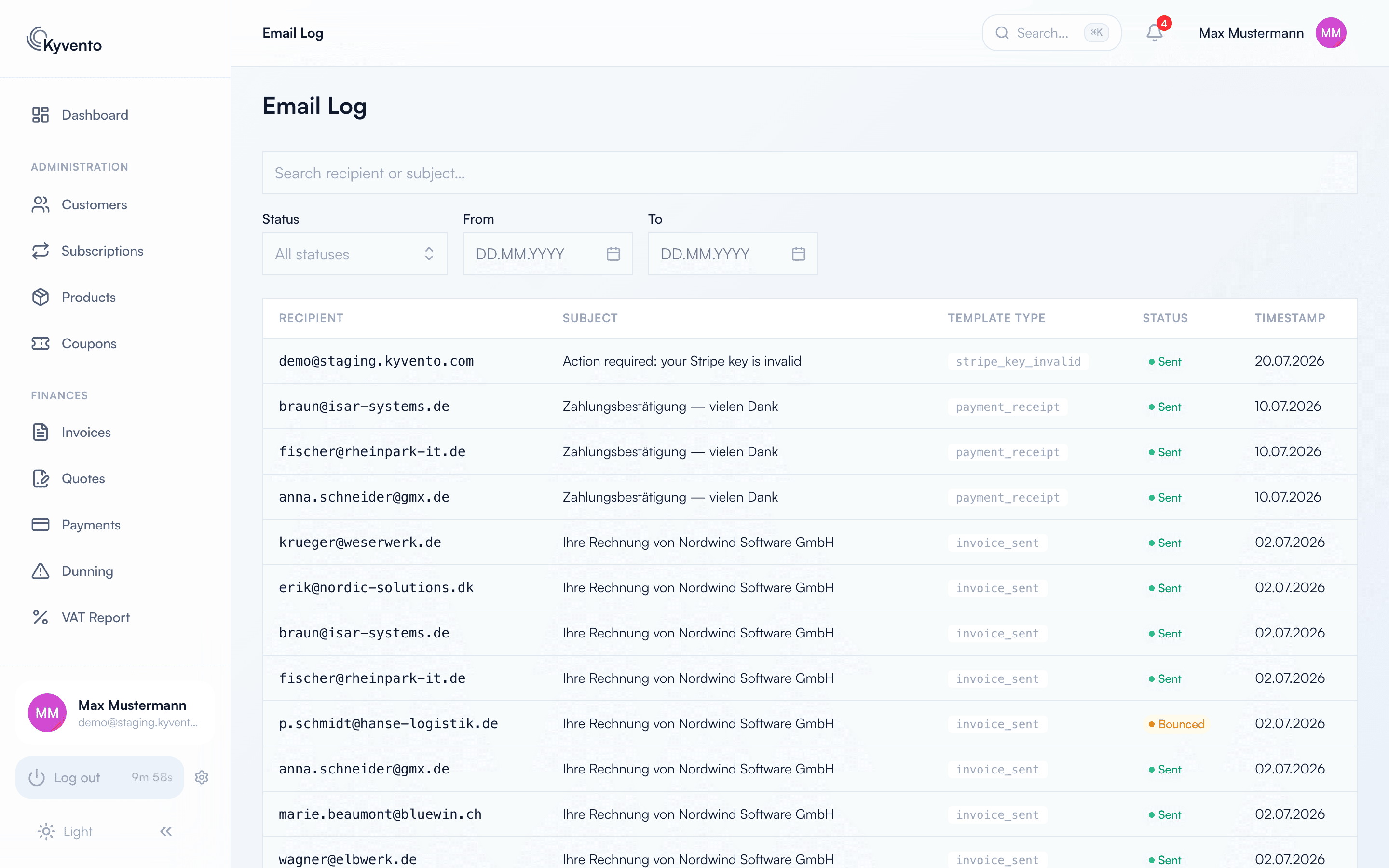
The "Email Log" (sidebar, "System" section) lists every message sent, with recipient, subject, status and timestamp. In case of problems, the detail view shows the actual error message or the bounce reason — that is the answer to "did the invoice arrive?".
If it says "Suppressed (undeliverable)", the message was never even attempted because the address counts as permanently unreachable — see Undeliverable e-mail addresses.
Subscribing to the daily report
The "Daily mail delivery report" delivers the previous day's sending balance each morning, including the bounce rate and the most common bounce reasons; if the bounce rate is conspicuous, the urgency of the notification rises automatically. It is switched off by default — subscribe to it under Settings → Notifications if you send invoices regularly.
Next steps
- Adjust email texts — see Invoice texts and languages
- Why the Kyvento address appears as the sender — see Which sender address your customers see
- If a customer address is permanently unreachable — see Undeliverable e-mail addresses