Using your own checkout domain
Overview
With your own domain, your checkout runs under buy.yourcompany.com instead of a Kyvento address – and the customer portal under account.yourcompany.com. That strengthens trust and your brand. This article walks through setup, DNS verification and activation.
Entering the hostnames
Under Settings → "Custom Domains" there is one slot each for the checkout domain and the portal domain. Enter the hostname you want and save. One domain per type is possible; use subdomains of your company domain, not the main domain – the DNS record routes all traffic for that hostname to Kyvento, so no web server of your own may run there any more.
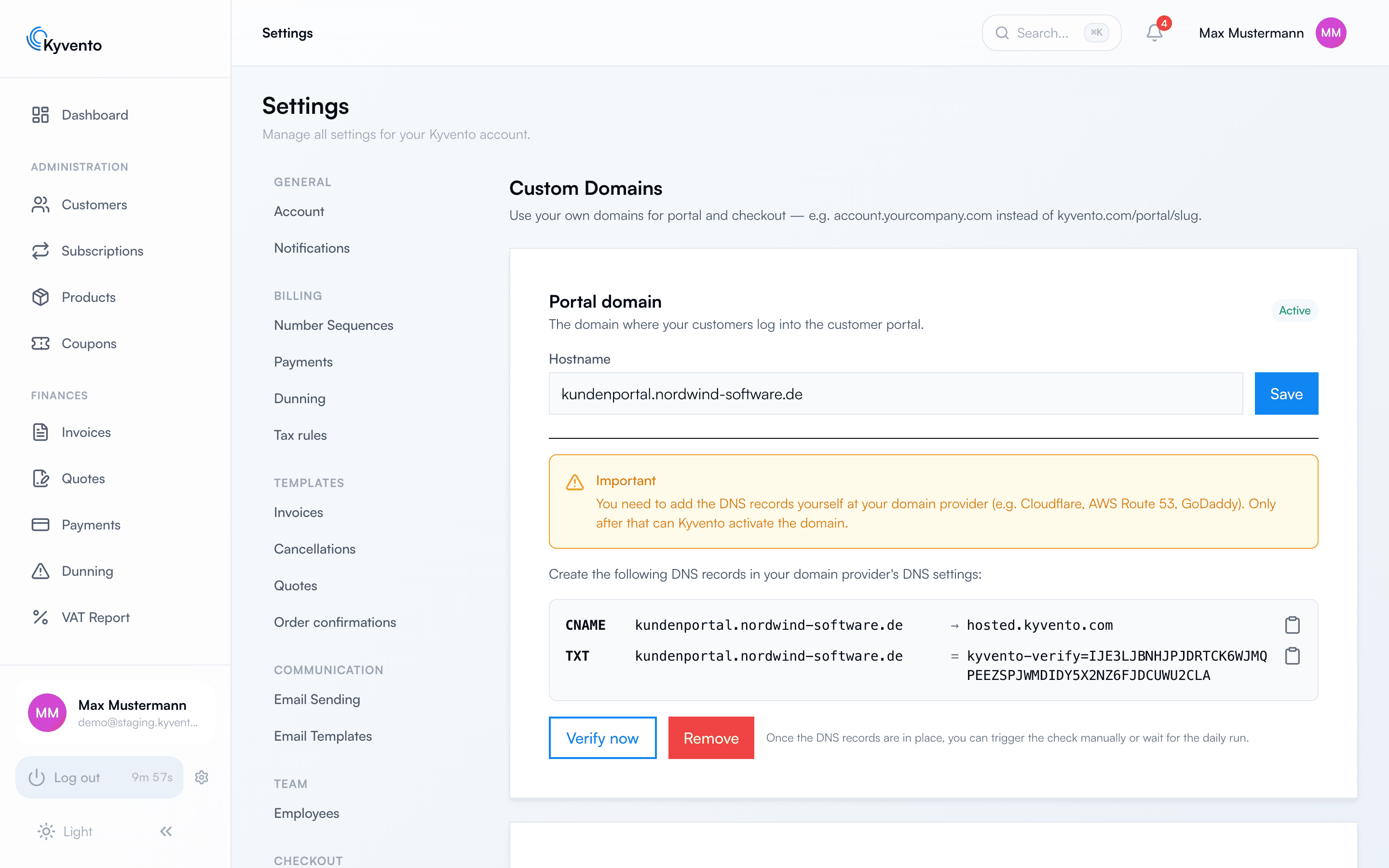
Setting the DNS records
After saving, Kyvento shows the records you have to create at your domain provider:
- a TXT record with a verification token – it proves the domain is yours,
- a CNAME record pointing your subdomain at the Kyvento target. If your provider does not allow a CNAME in this constellation, an A record pointing at the Kyvento server is accepted instead.
Both checks have to pass. "Verify now" triggers the check manually; Kyvento also checks daily. If the check fails, the result shows what was expected and what was found – DNS changes can take up to 24 hours to become visible everywhere, depending on the provider.
Activation and SSL certificate
Activation including the SSL certificate is currently performed manually by the Kyvento team. Once the DNS records are set, open a support ticket – we issue the certificate and enable the domain. From then on your checkout is reachable over HTTPS under your own address.
What happens to the old links
Checkout links you have already sent out keep working: requests to the previous slug address are permanently redirected (301) to your own domain. So you only need to replace the links if you actively want to advertise the new address.
Good to know
- The daily check keeps running. If you change domain provider, take the TXT and CNAME records with you – otherwise the check eventually fails and the domain loses its verification.
- Remove a stored domain with the Remove button, not by clearing the field.
Next steps
- Adapt the checkout to your brand – see White-label checkout: customizing the design
- Sales process and links – see Setting up hosted pages