White-label checkout: customizing the design
Overview
Your customers should see your brand in the checkout, not Kyvento's. Under Settings → "Hosted Pages" you shape colors, typography and the finer details – and with your own domain the Kyvento address disappears from the address bar too (see Using your own checkout domain).
Colors and typography
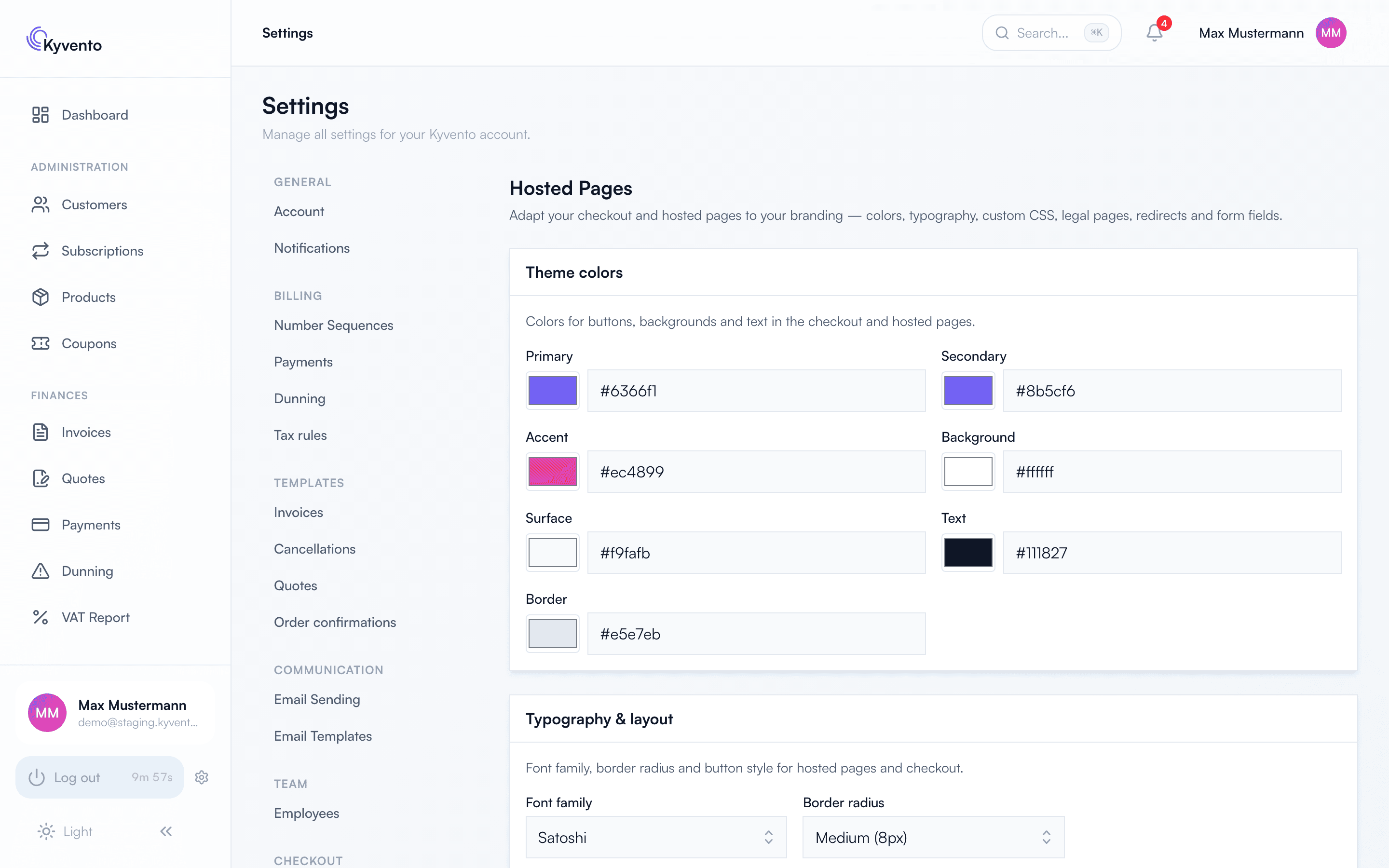
The colour section sets the colors for buttons, backgrounds, text and lines in the checkout and hosted pages – each as a colour picker or a hex value. Watch the contrast between text and background; a checkout that is hard to read costs conversions.
Under typography and layout you choose the font family, the corner radius and the button style. That way the checkout matches your website without you writing any CSS.
Custom CSS – within limits
If the standard options are not enough, you can add your own CSS. It is, however, validated server-side against an allowlist: properties that let elements overlap, move or become invisibly clickable – among them position, z-index, cursor, pointer-events – as well as url() and @import are not permitted. Use one of them and saving is rejected with a message. The reason is what the page is for: on a payment surface, no stylesheet may obscure what the customer is actually clicking.
Embedding your own JavaScript
Under "Custom JavaScript" you can embed an external script into the checkout and hosted pages – a chat widget or an analytics snippet, for instance. Three things have to come together, otherwise nothing is loaded:
- an absolute HTTPS address. Kyvento rejects
http:,javascript:anddata:. - a subresource integrity hash in the form
sha256-…,sha384-…orsha512-…. It is mandatory; without it the URL cannot even be saved. - the enable switch. Without it the script stays off, even when everything else is filled in.
The hash is not a formality: on a payment page, a script swapped out afterwards could read along with what is typed. The browser only loads it when the checksum matches – if the provider changes the file, it stays off until you update the hash. So only embed scripts whose origin you know, and prefer versioned URLs.
Kyvento can block custom JavaScript for individual accounts; in that case a note appears in place, pointing to a support ticket.
Logo and company name
You maintain your company logo centrally in the account settings – it appears among other places in your system emails, which also pick up your primary colour. In the checkout your business appears under its company name, including in the browser tab title.
Do not confuse it with the customer portal
The customer portal – the self-service area for existing customers – has an appearance of its own under Settings → "Branding" ("Customer portal" group), including its own CSS and its own custom JavaScript with its own switch. Checkout design and portal branding are independent of each other; maintain both if you want a consistent brand.
Recommendations
- Primary colour = your brand colour, the rest sparingly – a calm checkout reads as more trustworthy than a colourful one.
- After every change, open the checkout link in a private window and walk through all steps, on a phone as well.
- Round it off with your own domain – see Using your own checkout domain.
Next steps
- Sales process settings – see Setting up hosted pages
- Put your own domain in front – see Using your own checkout domain