Customizing invoice design
Overview
Your invoices are your business card. The template system lets you design the logo, colours, font and layout — right down to freely placed elements. This article shows where the templates live and which rules you should know about.
Template management
You find your templates under "Settings" → "Templates" section → "Invoices". One system template per language is included; the quickest way to create your own is to copy it.
The same area carries four document types, each with its own template list and the same editor: invoices, cancellations, quotes and order confirmations. What this article says about invoice templates applies to the other three just as well.
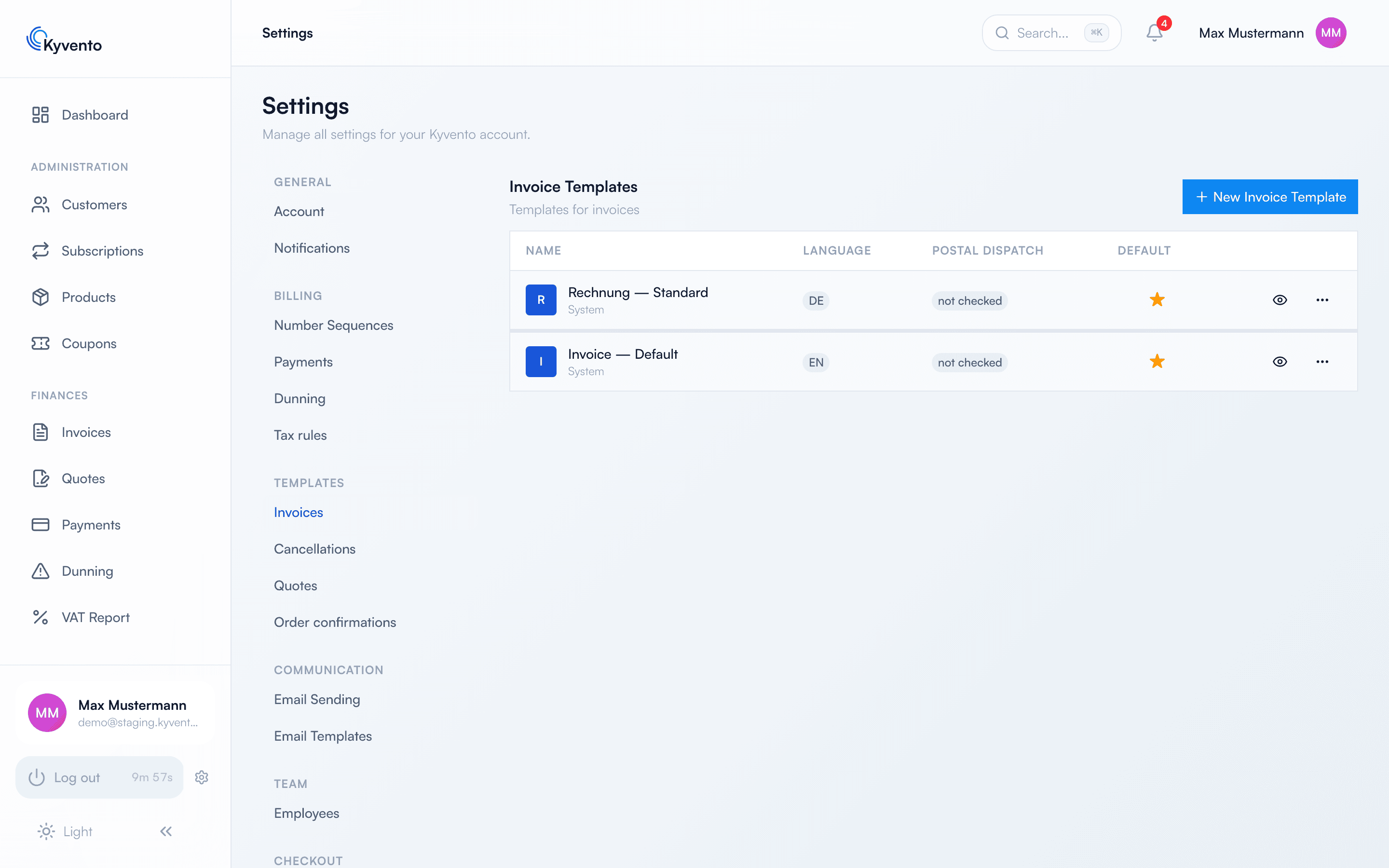
Three rules about the default template
- The default applies per document type and language. Making a German cancellation template the default therefore changes neither the English one nor your invoices.
- A system template cannot be made the default directly — copy it and make the copy the default. That keeps the shipped version as a fallback.
- A template that is currently the default cannot be deleted. Make another one the default first — or choose "Reset to system template".
What you can design
The editor covers everything a document needs: logo and stationery background, colours, font family and size, page format, the columns of the line-item table, plus freely placed text, image, table and line elements — the latter also with visibility conditions, so an element only appears in certain cases.
Without any customization, Kyvento provides a DIN 5008-compatible layout whose recipient field fits a window envelope. If you move things around there, keep that in mind — a document that no longer fits the address window when printed would otherwise only show up at the customer.
Using your own fonts
Alongside the system fonts you can upload your corporate typeface and select it in your templates. One restriction here comes as a surprise:
- Permitted are TrueType and OpenType files (.ttf, .otf). WOFF2 is deliberately rejected — the PDF generation cannot embed that format. A font uploaded that way would sit in the picker and never appear in the PDF. Kyvento therefore determines the actual file type from the content, not the extension.
- Mind the licence of your font: it must permit embedding in PDF documents. Kyvento cannot verify this.
- Uploaded fonts apply to your account only and are available for every document type. If you later replace a font with a new version, existing templates keep their assignment.
Where the logo comes from
You maintain your central company logo under "Settings" → "Account"; it appears automatically on all documents that do not have their own template logo. The "Branding" tab, by contrast, only affects the appearance of the customer portal — replacing the logo there changes nothing about your PDFs.
Next steps
- Text blocks and languages — see Invoice texts and languages