Sending invoices by post
Overview
Not every customer accepts invoices by email — some public authorities and older contracts require paper. Kyvento can therefore have your invoices printed and delivered by post, without you stuffing envelopes. This article describes sending an individual document and tracking its status. Activation, delivery routes, budget and credit are covered in Setting up postal dispatch.
How postal dispatch works
Kyvento turns your invoice into a print-ready PDF and hands it to a print and mailing provider, who prints it, puts it in an envelope and passes it to the postal service.
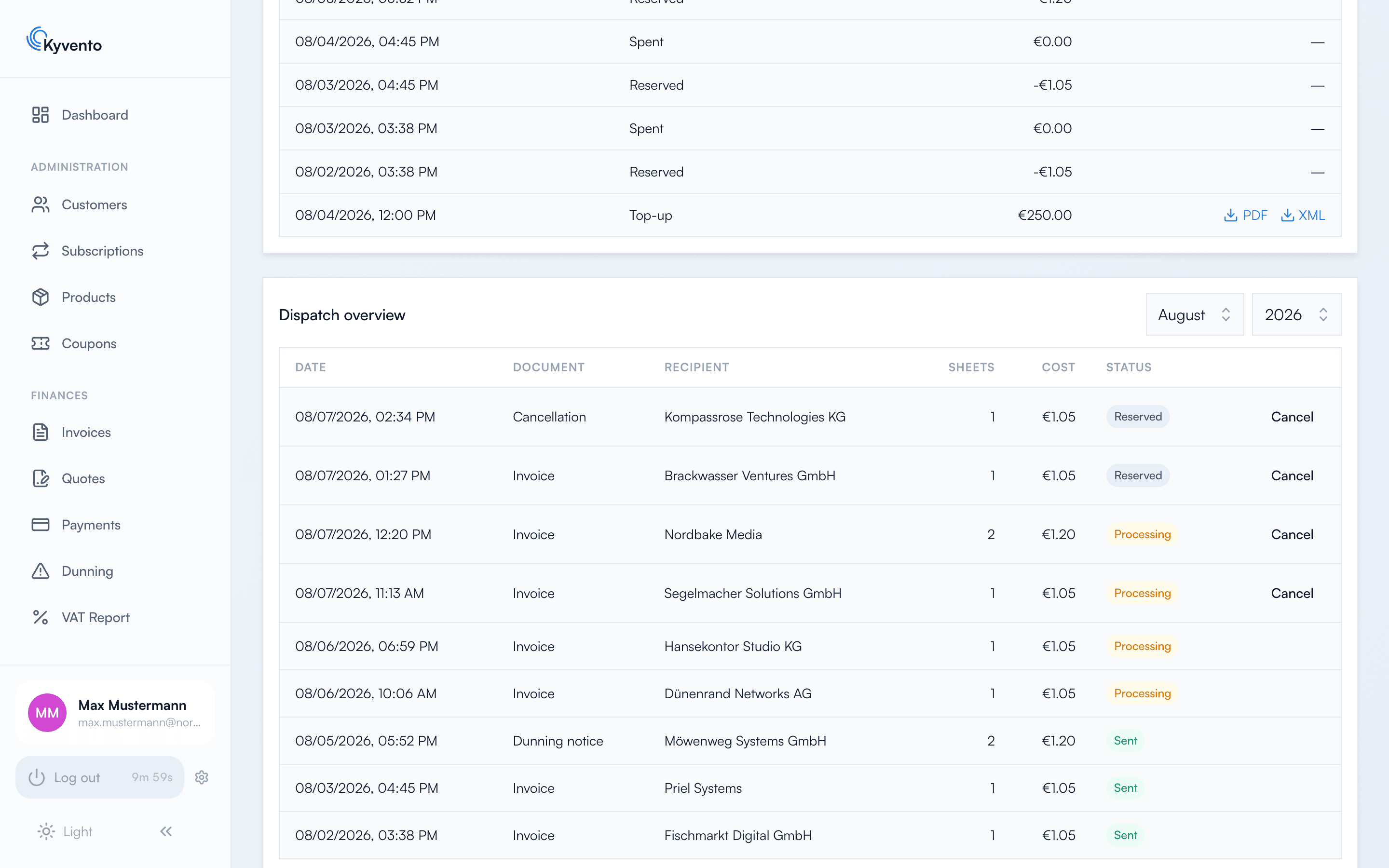
Every item passes through these states, visible in the dispatch overview under "Account" → "Postal dispatch":
- Reserved — the order stands, the amount is reserved on your credit, production has not begun.
- In progress — the provider is producing the letter.
- Sent — the letter has been handed to the postal service.
- Failed or Cancelled — the item did not materialise; the reserved amount returns to your credit.
While a letter is reserved, you can still cancel it in the dispatch overview – it is then not charged. Once production has started, that is no longer possible.
Sending an invoice by post
- Open the invoice and choose “Send”.
- The dialog places “By email” and “By post” side by side. The postal part states the number of sheets, the postage (net) and your credit afterwards before you trigger anything.
- Confirm with “Send by post (payment required)”.
If the document has already been posted once, the dialog says so and asks before a second — likewise chargeable — letter is created. If your credit is insufficient, the dialog names the available amount and links straight to topping up.
Kyvento never sends documents you created by hand on its own — here you deliberately pick the route every time. For automatically created documents, such as subscription invoices, the configured delivery routes apply instead.
Making sure the letter arrives
Before dispatch, Kyvento checks the address against the requirements of the address window. Two things are the most common stumbling blocks in practice:
- Lines that are too long — company name and address suffix have to fit into the window. Kyvento tells you when a line overflows.
- Missing mandatory details — without street, postcode and city nothing can be delivered.
Kyvento collects flagged addresses under "Problematic postal addresses" in an overview of its own, so you can fix them in one go instead of being held up at every single dispatch.
Cost and accounting
Every item is deducted from your credit at its actual price, depending on the number of sheets. You can see the history under Account → Postal dispatch in the credit movements: every top-up, every reservation, every consumption. If a delivery fails or is cancelled, the amount returns to your credit. How to top up and set automatic top-ups is described in Setting up postal dispatch.
Next steps
- Check your invoice template against the address window — see Customizing invoice design
- For electronic recipients: E-invoicing: XRechnung and ZUGFeRD