Setting up postal dispatch
Overview
Postal dispatch is an add-on module: Kyvento has your documents printed, enveloped and delivered as letters. This article covers the setup – activation, delivery routes, budget and credit. How to put an individual invoice in the post is described in Sending invoices by post.
Everything for it sits under "Account" → "Postal dispatch".
Requirements
- Recipients in Germany – other destination countries are not possible at present.
- An account billed in euros.
- An invoice template whose layout has passed the postal dispatch check (see below).
Activating postal dispatch
Before first use you activate the module once. Activation itself is free – in doing so you expressly confirm that every letter sent incurs a charge. Only afterwards do the settings and the dispatch option on your documents appear.
You can cancel postal dispatch again later. Letters already submitted are then completed, those not yet produced are cancelled; new postal deliveries are no longer possible from that point on.
Delivery routes per document type
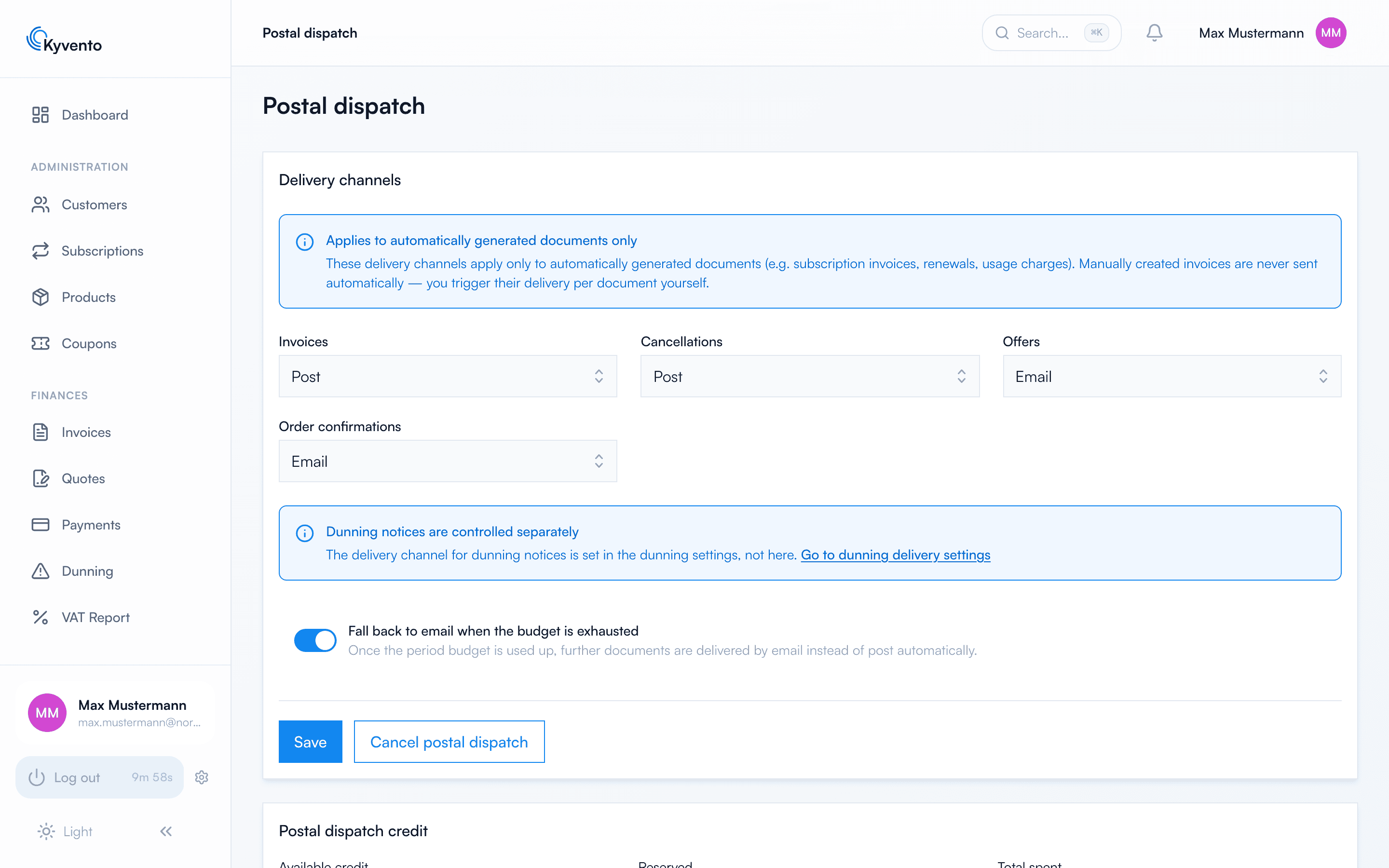
Under "Delivery routes" you decide separately for each document type whether it goes out by email, by post or both ways: invoices, cancellations, quotes and order confirmations.
Two limitations are worth knowing:
- The delivery routes apply to automatically created documents only – subscription invoices, renewals and usage billing, for instance. Kyvento never sends an invoice you created by hand on its own; there you trigger the dispatch per document.
- Dunning letters do not run through this. You set their delivery route in the dunning area; the page links straight there.
Budget and fallback
The maximum budget per period caps your postage costs. Leave the field empty and there is no upper limit; once the budget is reached, postal dispatch stops. So that no document is left sitting, there is the switch "Fall back to email when the budget is exhausted" – further documents then go out electronically.
The cost overview card shows what has been charged, what is reserved and the projected total for the current period.
Credit and automatic top-up
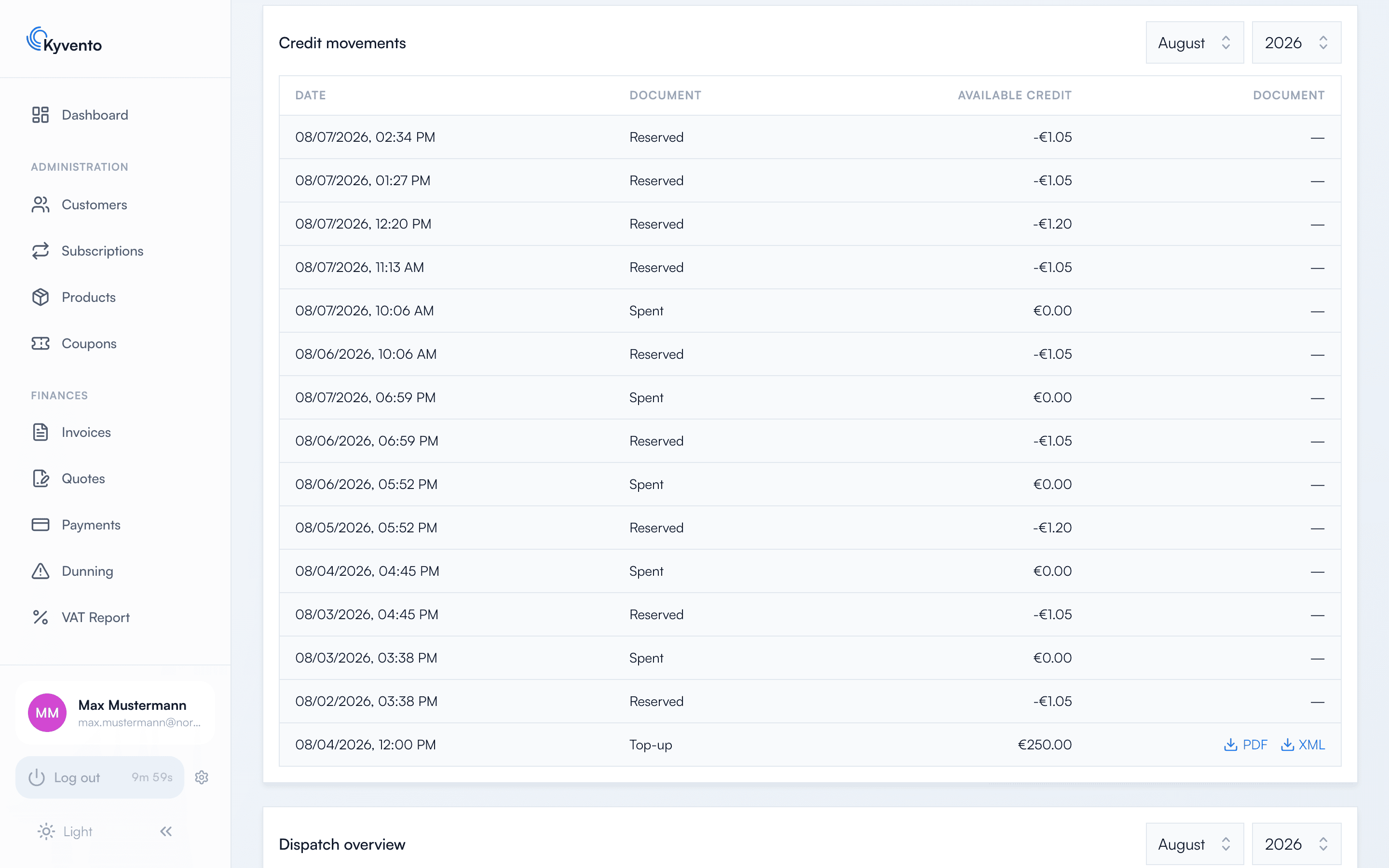
Letters are paid from a credit balance you top up in advance. It equals the net dispatch value; VAT applies at purchase and is deductible as input tax for businesses. For every top-up you receive a separate document as PDF and XML – separate from your subscription invoice.
The card shows three figures side by side: available credit, reserved (for letters still in production) and total spent. Below them, credit movements list every top-up, reservation, consumption, release and refund individually.
So that a dispatch does not fail on an empty balance, automatic top-up can be switched on: you set a threshold and a top-up amount. This works with a credit card only – SEPA direct debit is not permitted for it. If several charges fail, Kyvento pauses the top-up; saving again re-enables it.
Checking the template layout
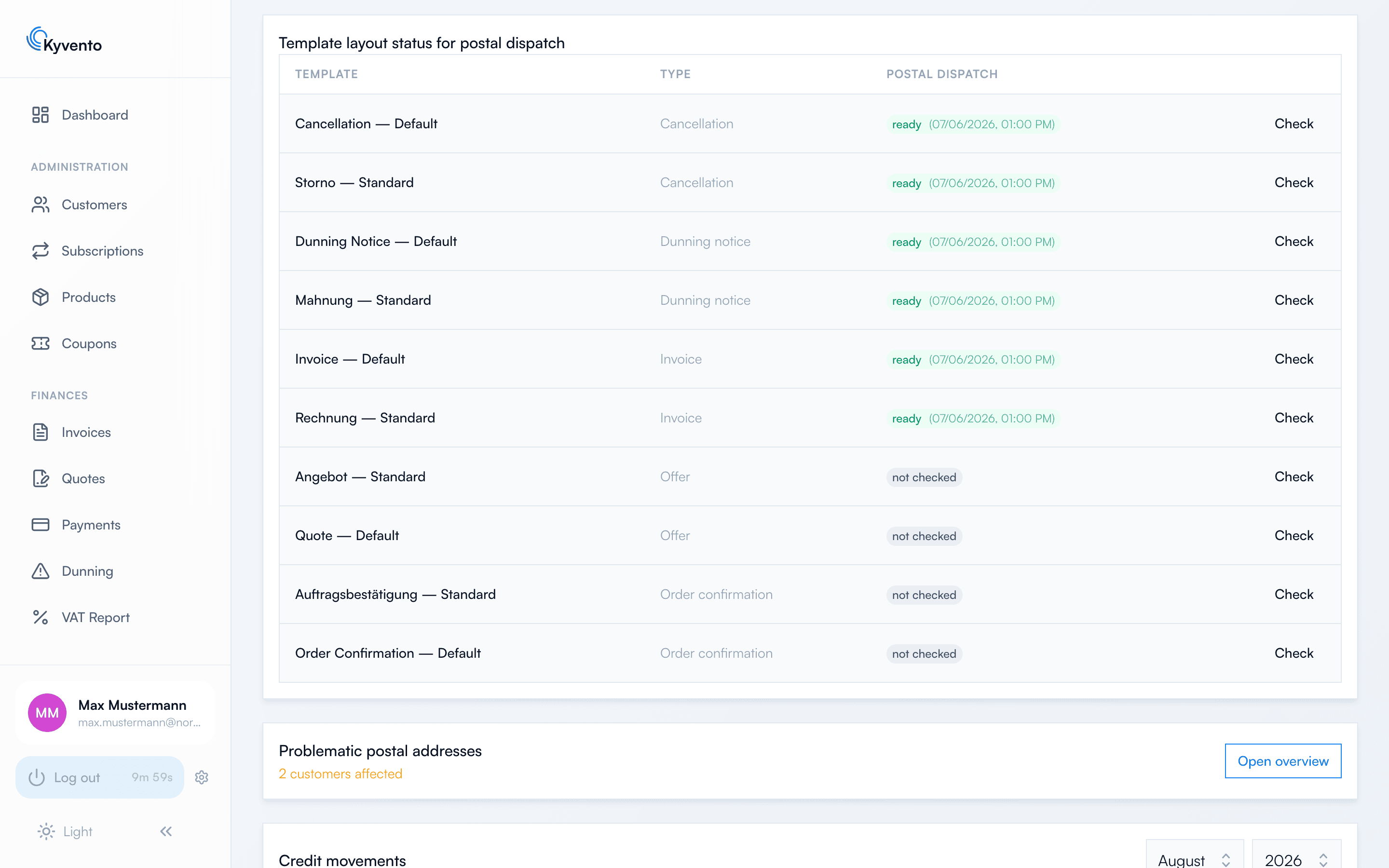
A letter has to fit the address window. The card "Template layout status for postal dispatch" lists your templates with one of four states:
- ready – checked and fit for dispatch.
- unchecked – not yet checked for postal dispatch. For email-only sending this does not matter.
- invalid – the layout is not suitable for postal dispatch.
- check revoked – the template was changed after being checked.
Via "Check" you run the check per template. Mind that last point: every change to a checked template revokes its status. Run the check again before the next letter goes out.
Problematic postal addresses
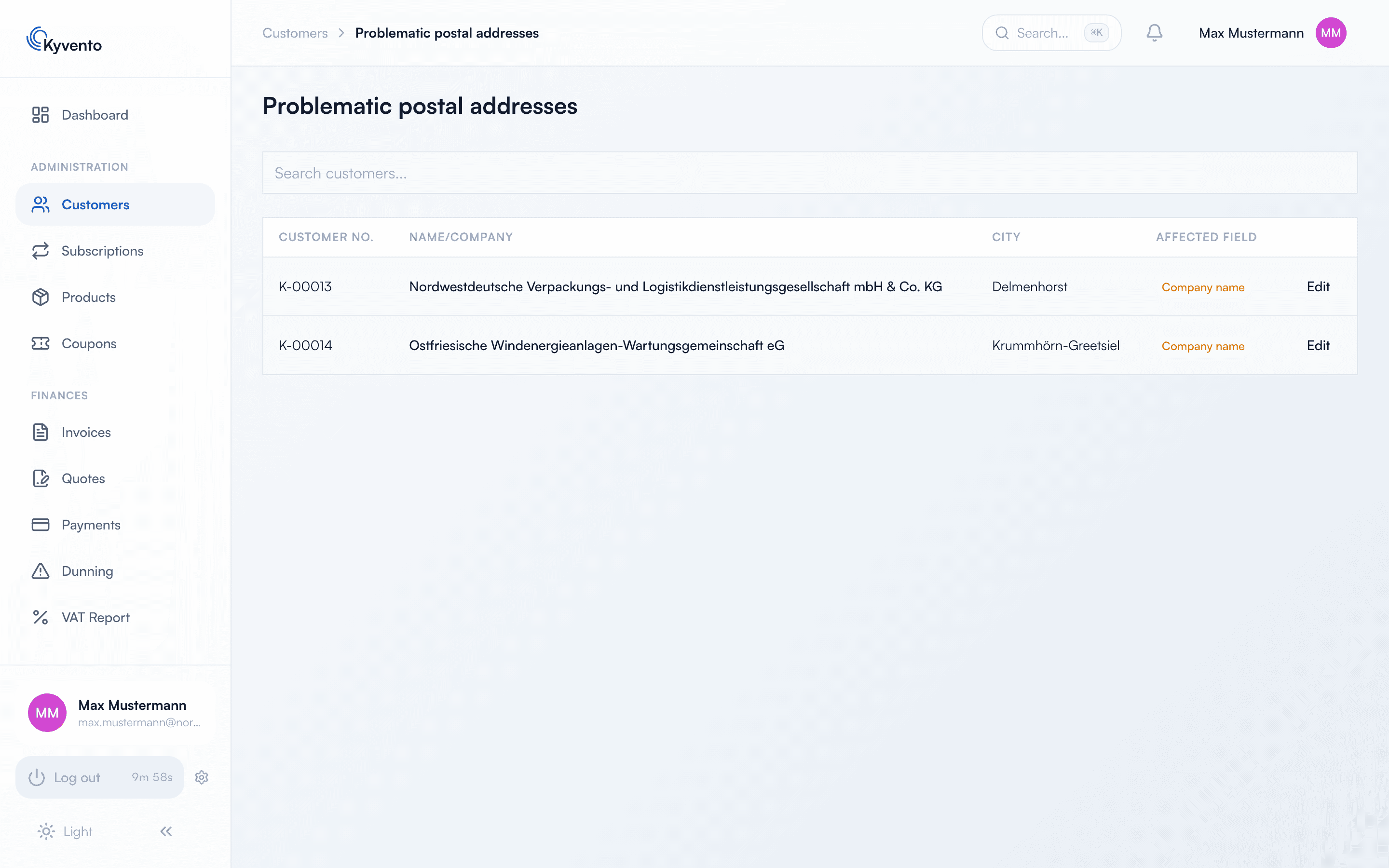
Kyvento also checks recipient addresses against the address window – overlong company names or street names would otherwise only surface at printing. Affected customers are collected in the "Problematic postal addresses" card with an overview of its own, where you correct them in one go instead of being held up at every dispatch. If everything fits, the card says exactly that.
Next steps
- Actually sending a document – see Sending invoices by post
- Designing templates with the address window in mind – see Customizing invoice design